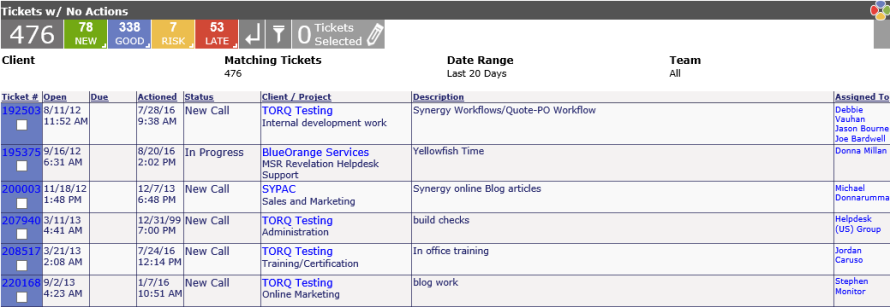
No client wants to be forgotten, but sometimes a ticket slips through the cracks. From this screen, you can check on tickets with no new actions in a predetermined time span. The number of tickets matching the search is listed at the top of the table.
Your Search options are:
Team: Select a specific team or leave at default for all
Assigned To: Allows you to select one or more staff members. Multiple staff can be selected by clicking on the arrow and then using the Ctrl key to select.
Cost Center: Multiple cost centers can be selected by clicking on the arrow. Click on each cost center while holding the Ctrl key. If you want to see all the cost centers, simply leave the pull down box at the default.
Start Date/End Date: To specify a date
No action in last ___ days: The system default is 20 days, but can be manually changed at this screen.
Once your report displays, eight columns will appear indicating the following:
Ticket Number: Specific number of the ticket
Open: Date the ticket was opened
Due: Date the ticket is due to be completed
Actioned: Last Actioned Date of Ticket
Status: As determined by the Ticket Settings-Ticket Status set up.
Client/Project: Client name and project name
Ticket description: Initial ticket description in Revelation
Assigned To: Users assigned to the ticket
You can sort the list by any of the column headings except Assigned To. From this screen, you can click on the ticket, which will bring up the ticket details and all the associated notes.
Multi Edit Functionality
The Tickets With No Action report can use the Multi Edit functionality to edit/close multiple tickets at the same time. This is only available if the Multi Edit module is active in Revelation.