
Ticket Tags
Ticket Tags provide an additional way to organize and identify tickets in Revelation. Tags can be applied to individual tickets or to multiple selected tickets and can be used to filter tickets on the Home Page.

Creating Tags
If you have the appropriate permissions, you can create tags for either individual or broader use. Tags are configured to include a name, color, and scope, which can be set to either User or System.
To create a tag, right click on the desired ticket and hover over the Tags option in the context-sensitive menu. A list of all existing tags within your system will appear:
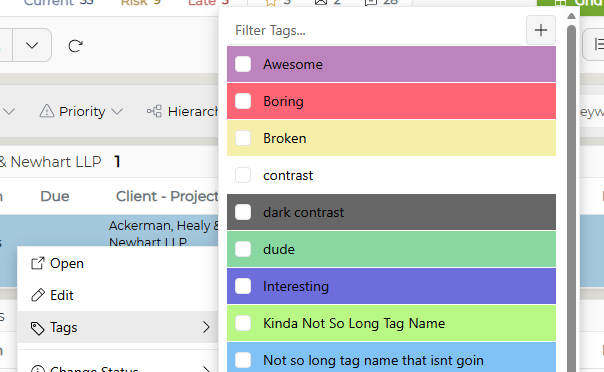
Click the + button in the top right corner of the flyout menu to open the Add New Tag window.
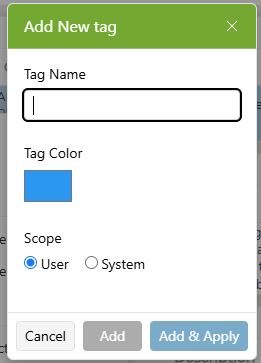
Enter the tag name and select the tag's color (you can use the eyedropper tool or choose between RGB, HSL, or Hex). Select whether the Tag's scope will be User (individual - not visible to other users) or System (available to all staff members).
Once the tag has been configured, click Add to add the tag to your current list of existing tags, or choose Add & Apply to use the new tag on the ticket that is currently selected.
Applying Tags
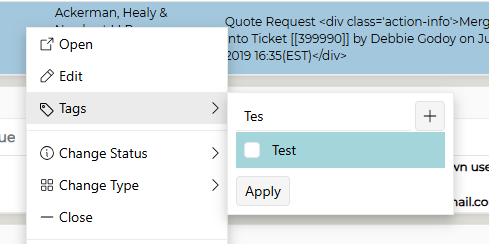
Tags can be added to tickets from the context-sensitive menu. Select the ticket you would like to add tags to, open the right-click menu, hover over Tags, and select as many tags as necessary for your ticket.
You can also apply tags to multiple tickets at once. Select the desired tickets before opening the context-sensitive menu. If a tag is already applied to only some of the selected tickets, it will appear partially selected.
If you have many tags to choose from, you can use the search box at the top of the Tags field to filter your results down.
Editing Tags
You can edit an existing tag by opening the Tags menu and hovering over the relevant tag that needs editing.
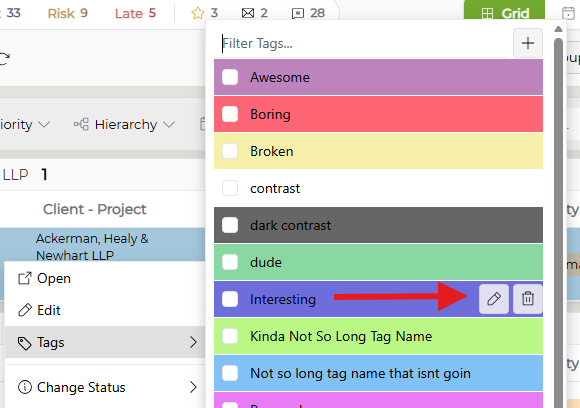
Click the edit pencil to open the Edit Tag window.
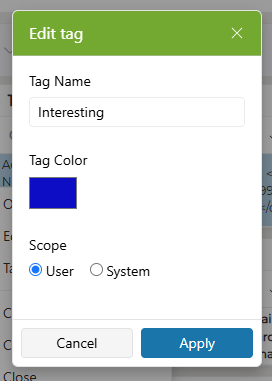
Make any necessary changes and click Apply to save them. Your tag will automatically update.
Delete Tags
To delete a tag, open the Tags list from the context-sensitive menu and hover over the tag you wish to delete. Click the trash can icon to delete the tag.
Filtering by Tags
Applied tags appear as colored chips alongside the ticket description in the ticket grid - however, if you are viewing many tickets, you can filter your view based on what tags appear in your visible tickets.

Select as many Tags as you would like to view: Revelation will automatically refresh your home page to show you the relevant items. To clear Tag filters, use the Clear Filters button  .
.