
Some tickets can be rather long and have multiple staff adding to the ticket history. To filter through the ticket to find each person’s notes can be time consuming.
The Ticket Action Filter allows you to filter by one or more of the people who have added actions to the ticket and by the type of action (Internal User, Assignment change or Logged by Template).

NOTE: If you do not have the Action Note Filter enabled in your toolbar, click the 3 dots menu at the end of your toolbar to toggle it on.
Click on the Ticket Toolbar drop-down menu and select Action filter. (To include this in your default toolbar, go here.)
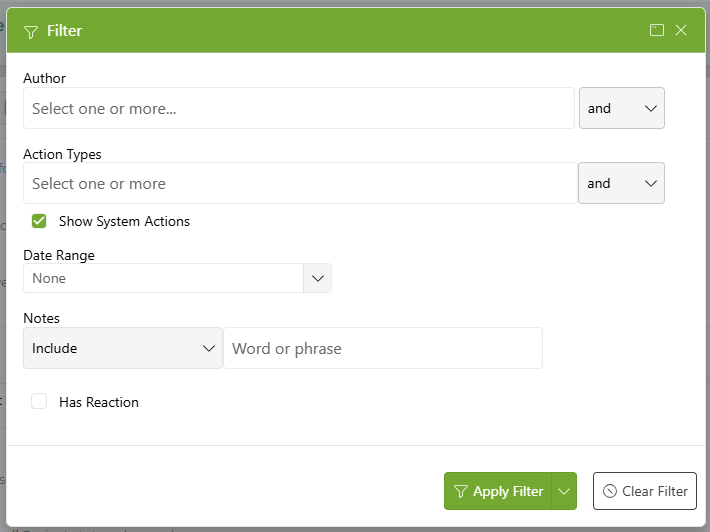
Using the drop-down menus in the filter pop-up, select the items you want to filter for.
| Filter by Author | 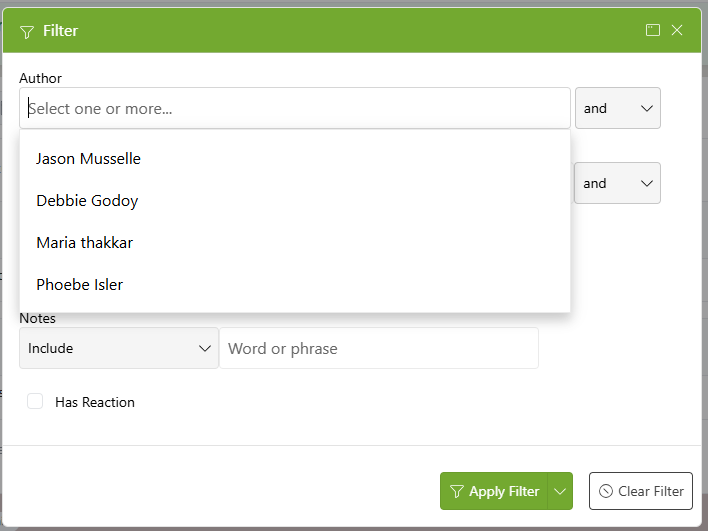 |
| Filter by Action Type | 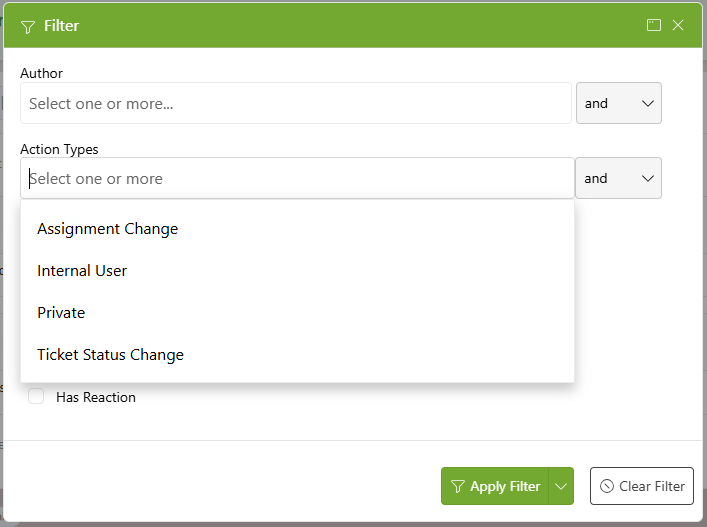 |
| Filter by Date Range | 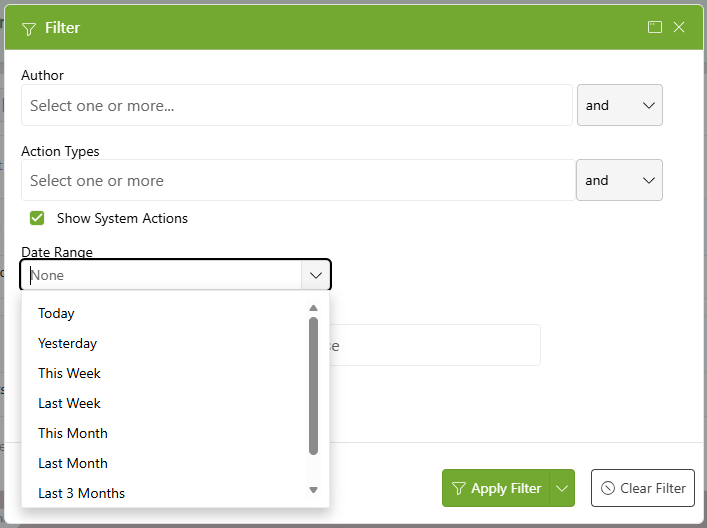 |
When you hit Apply Filter, only the action notes relevant to the user's selections will be visible on the screen.
If Show System Actions is checked, all the System Actions against the Authors selected will be included in the filter. If unchecked, only the Action Notes will be shown.
NOTE: The check box will be visible only if you are set to see System Action Notes.
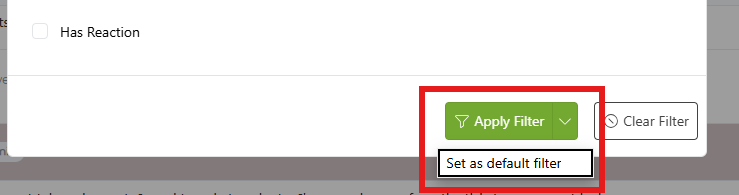
To save an Action Note Filter as your default failter, click the drop-down arrow on the Apply Filter button and select Set as default filter.
Ticket with all notes | 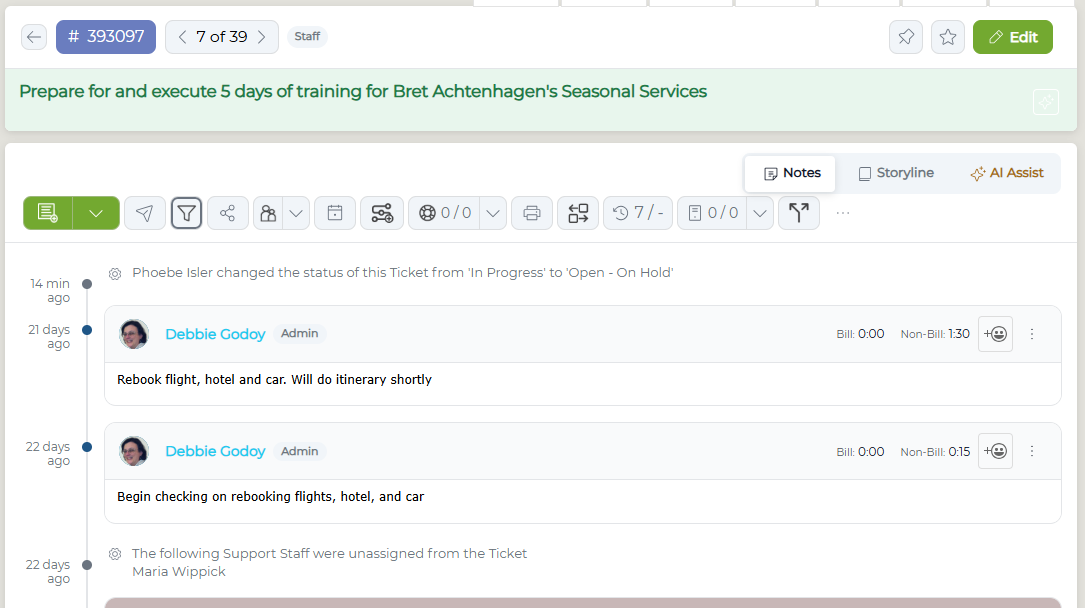 |
Filtered Ticket (filtered by Maria Thakkar notes) | 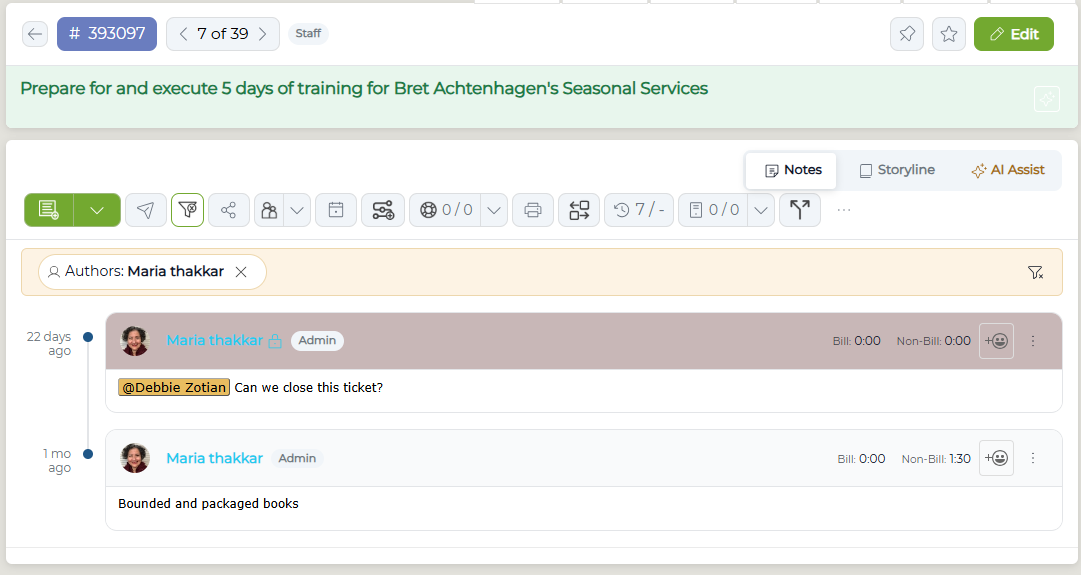 |
To remove an individual filter, select the X next to the filter option. To clear all filters, click the Clear all filters button on the right side of the filter field. |  |