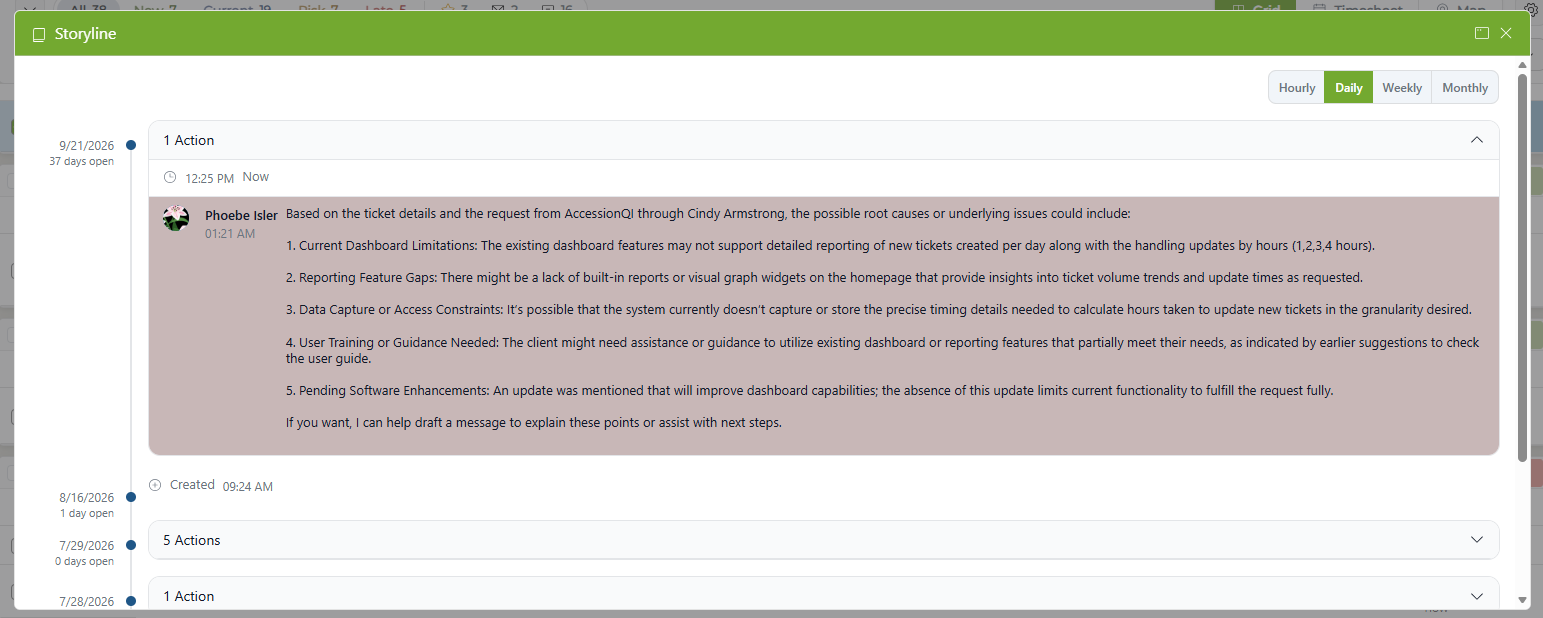
Storyline provides a visual summary of a ticket's activity from being logged through completion. It is activated in the Admin area, and is set by either Access Level or Team.
Storyline shows a timeline of the actions within a ticket: how long the ticket has been open, the status (by color), any changes to the status, if Action Notes were added via Timesheet, etc. in one quick view.
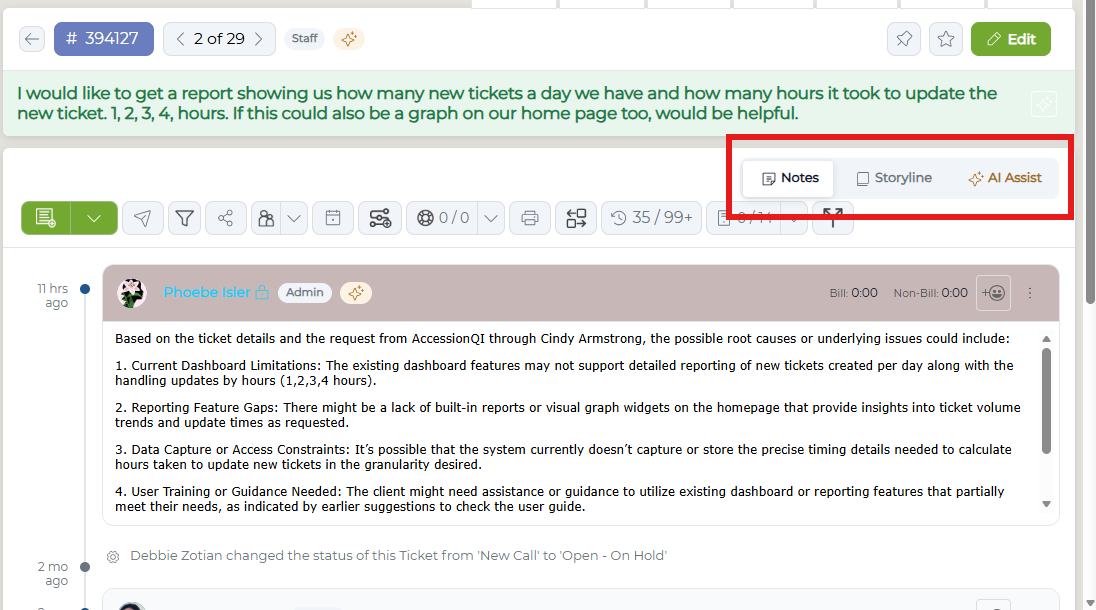
Users can select the Storyline tab from the ticket toolbar to view the storyline timeline.
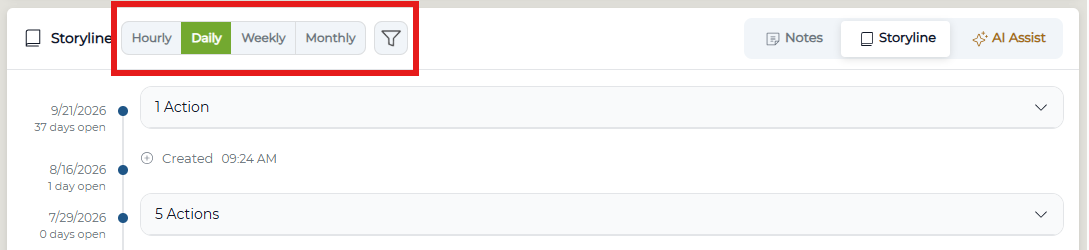
The storyline is laid out vertically - you can toggle the view to see updates by Hour, Day, Week, or Month using the buttons in the storyline header.
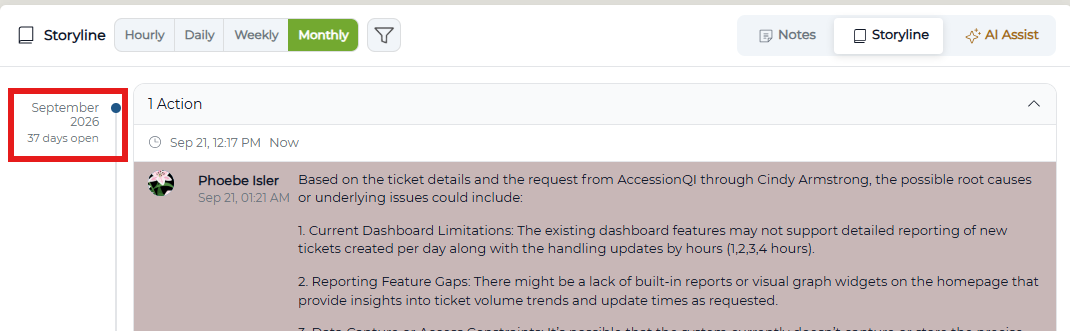
You can expand each group of actions by opening the drop-down menu.
Actions by Month
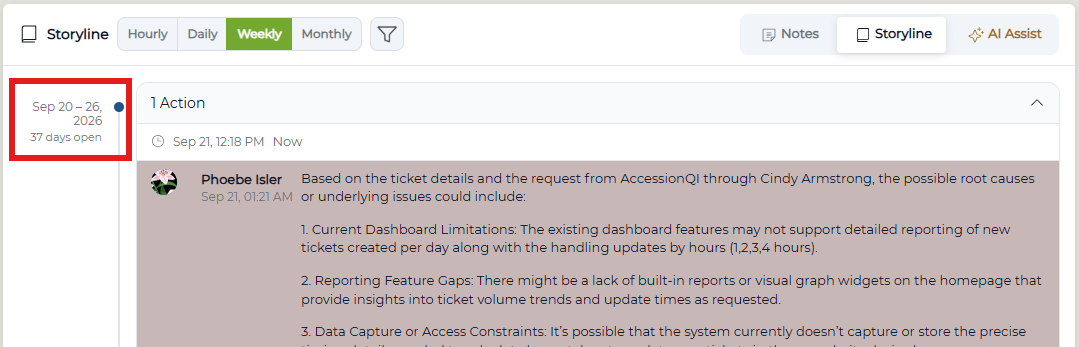
Actions by Week
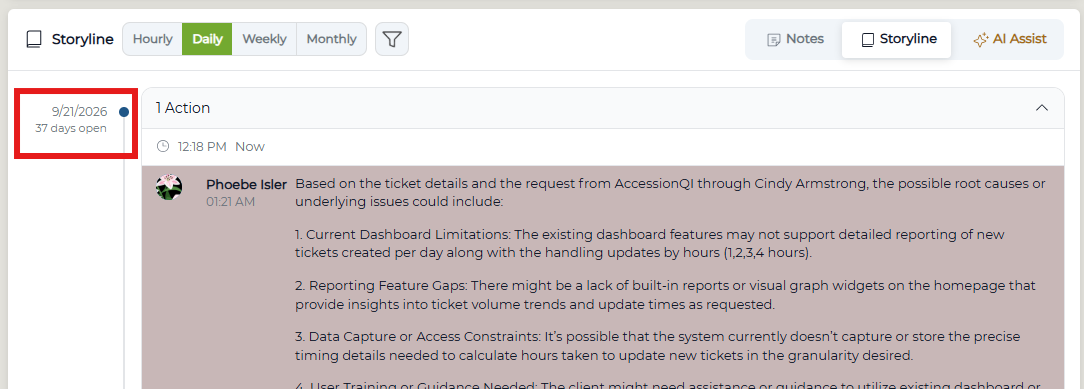
Actions by Day

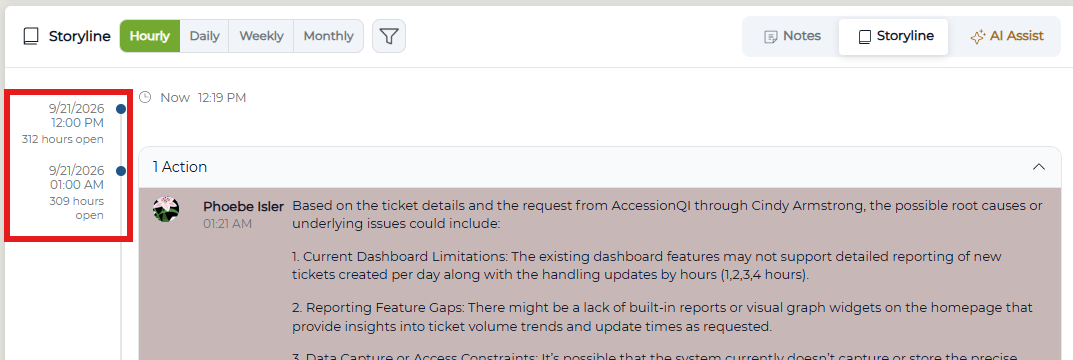
Actions by Hour
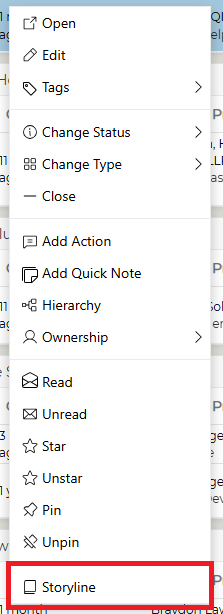
Storyline is also visible from the home page (in Grid View only). Right click on the ticket to bring up the Context Sensitive Controls. Select the toggle Storyline option at the bottom to bring up the visual.
The Storyline will appear in a pop-up window within your ticket homepage. You can expand and shrink sections of the storyline from grid view the same as within the ticket.