
Staff Plus access level provides the tools available to an internal staff person to an external user as approved by the client. This is especially useful if your client has an internal IT staff for Tier 1 support and you are the Tier 2/3 support. Or perhaps there is a third party vendor for specific tasks (copier, telephony) who needs to log their time to the system. Staff Plus will allow them to see the relevant information within the system, yet protect the security of your clients.
If your client wishes to have a Staff Plus user assigned, an Internal Administrator must create the user; it cannot be done by the client. Also, unlike other external users, the Staff Plus user level requires a Revelation license.
Staff Plus set up
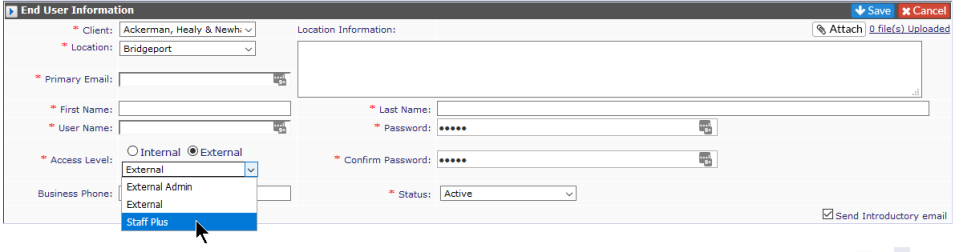
Select the client from the Manage Your Clients drop down and add a new user to the appropriate location. One of the options on the Access Level drop down will be Staff Plus.
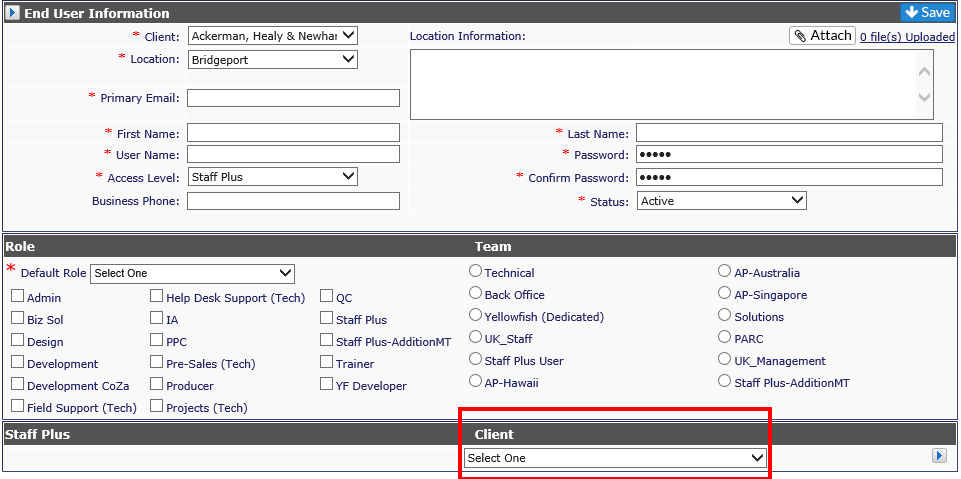
Once this is selected, the internal Roles will display. Select the appropriate Role and Team, if available, for the user.
The next section has a drop down of clients, similar to the Client Manager drop down. If the Staff Plus user is working on multiple clients, click on the arrow and the Ctrl key to select multiple clients. Otherwise, select the single client and hit Save. This locks down the client or clients the Staff Plus user will be able to log tickets for or search on.
Staff Plus users have access to the Revelation Outlook Bridge for assistance in logging tickets which come in through email. Please see the Revelation Outlook Bridge section for downloads and instructions.