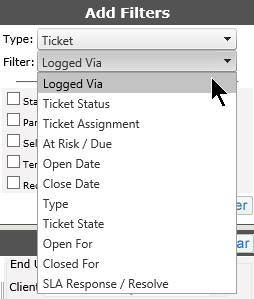
Here is a breakdown of the various Ticket Type Filters for Search:
|
Filter |
Description |
Additional Information |
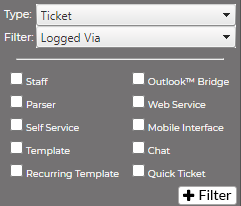
Logged Via
|
Allows you to select to filter
by how the ticket was logged into the system
|
Note: If the feature is not active, or not available in your version of Revelation, the search results will be nil. |
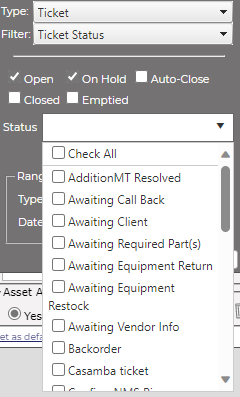
Ticket Status |
Select from:
Then narrow the search by refining via the drop down. |
 |
Open Date |
Predefined |
|
|
Equal |
Enter a specific date or use the calendar drop down to select a date |
|
|
Greater Than |
Enter a date for search to use as a starting point and will search beyond this date. |
|
|
Less Than |
Enter a date for the search to use as the end date for the search |
|
|
Range |
Enter a specific start and end date for the search |
|
Close Date |
Predefined |
|
|
Equal |
Enter a specific date or use the calendar drop down to select a date |
|
|
Greater Than |
Enter a date for search to use as a starting point and will search beyond this date. |
|
|
Less Than |
Enter a date for the search to use as the end date for the search |
|
|
Range |
Enter a specific start and end date for the search |
|
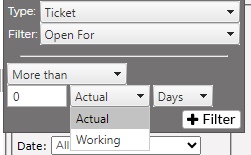
Open For |
Select option of More than, Equal or Less than from the first drop- down list. Select either Working days (Monday - Friday, business hours) or Actual days (days including weekends and after-hours work) from the second drop-down list. Select the appropriate period of time from the third drop-down menu (hours/days/weeks/months/years), then enter the appropriate number in the text box. |
|
Closed For |
Select option of More than, Equal or Less than from the first drop- down menu. Select the appropriate period of time from the second drop-down menu (hours/days/weeks/months/years), then enter the appropriate number in the text box. |
|