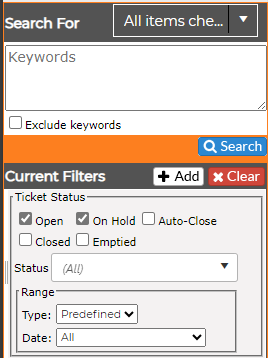
Below is a list of the Standard filters available for the Search function. The Field Names will be in the Filter drop down. If a filter is selected, it is removed from the drop down list to avoid confusion.
Standard Type List
For more information on each of these, please click on the link to the appropriate page:
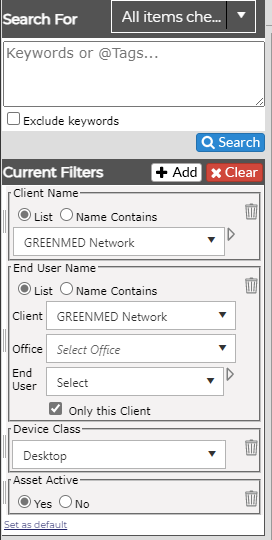
Add Filters
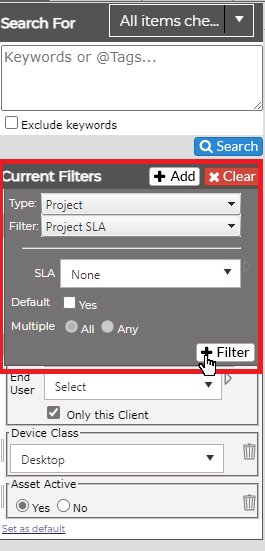
Once you have selected the filters you want from each group, be sure to click on the +Filter button to add. Click on the Search button to produce the updated search results.
|
|
|
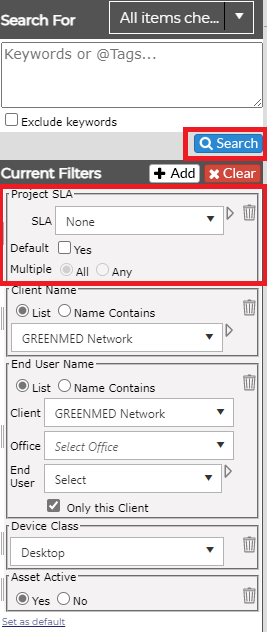
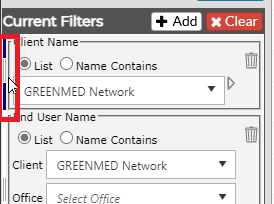
If you have multiple filters, you can reorder them for easier readability by clicking on the drag bars on the left side of the filter. Click the drag bar to highlight it - once the bar is blue, you can move the filter wherever you need.
|
|
|
Clear Filters
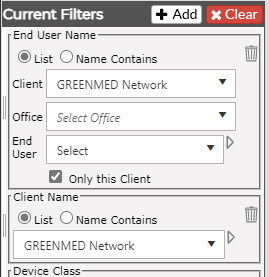
You can clear all the filters by clicking the Clear button at the top of the Current Filters list.
Set as Default
Once you set some filters, you can set it as the Default so the filters will be there at the start of every search. Simply click on the Set as default link at the bottom of the Current Filters screen.
New Search
To clear what you've done and start a new search, click on the New Search icon below the Current Filters list. This will clear the current search and return to the default search screen so you can start again.
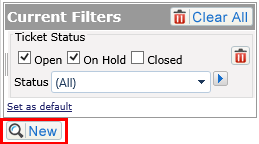
NOTE: If you have not set any filters up as yet, Revelation will search using the below default: