From the main page, you will see either a Splash Screen, with shortcuts to various areas of Revelation helpdesk, or your home page (either the Grid View or the Splash Screen). The initial view will be set by your Support Company or IT Department.
Along the top of the screen are for the following:
|
Your Photo |
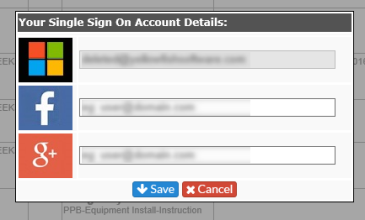
Click the down arrow to open your drop-down menu, which includes "My Account" (to see your User Information) and Help (this help guide). Within "My Account", you will be able to edit some or all of your information, including phone numbers, titles, etc. If your Support Company or IT Department has activated Single Sign On, you'll be able to set up your account details for a Microsoft Business account (Office 365), Facebook or Google+.
When you click on the option, you'll see the following where you can add your details:
|
|
|
Log out of Revelation |
|
Buttons |
Your support company sets the tabs you can see. They may include the following:
|


Note: The initial view of your home page will be set by your Support Company or IT Department.