NOTE: This is only available to Admin Level Users.
By right clicking on the Grid icon on the right side of the screen, you will see several options for your Home Page view:
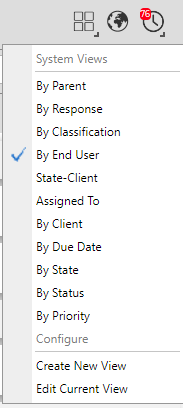
The default views are as follows:
| By Parent | Shows tickets grouped by parent ticket number. |
| By Response | Shows tickets grouped by response date. Revelation will also group tickets with the same response date by Status and Assigned To for clarity. |
| By Classification | Shows tickets grouped by classification. |
| By End User | Shows tickets grouped by End User and lists number of tickets that each end user has. |
| State - Client | Shows tickets by State (New, Good, Late, At Risk) and by Client (if you have multiple clients within your organization) |
| Assigned to | Shows who is assigned to the ticket from your help desk. If multiple staff are assigned to a ticket, the ticket may be in each grouping for the individual tickets. |
| By Client | Sorts by Client, if there are multiple clients within your organization. |
| By Due Date | Groups tickets by their due date, with most recent date at the top |
| By State | Groups tickets by state - New, Good, Late, At Risk |
| By Status | Groups tickets by status. The exact status will depend on how your help desk has set this up. Examples are New, On Bench, On hold, Awaiting call back, etc. |
| By Priority | Based on the Priorities set by your help desk. Default are Normal, High, Low |
To adjust the views, or create your own view, see Create Custom Grid View.
The results will be grouped on the home page. You will be able to collapse/expand the sections as needed.
