Note: This is set up in the Admin Area for Configure Self-Service.
For Admin Level Users Only
Used to search End Users associated with your company.
|
Office |
Select the specific office or leave at default (Select One) to search all offices |
|
Access Level |
Default (Select One) shows all. You can also select External, External Admin, or Staff Plus |
|
Status |
Active or Inactive |
|
Last/First Name Beginning With |
Type in a partial name, all matches will appear |
|
Display |
Lists results of search based on criteria selected |
Matching Results:
You can sort by each header.
Click on the Contact name to go to User's information
Click on email to send email to contact.

Add new users
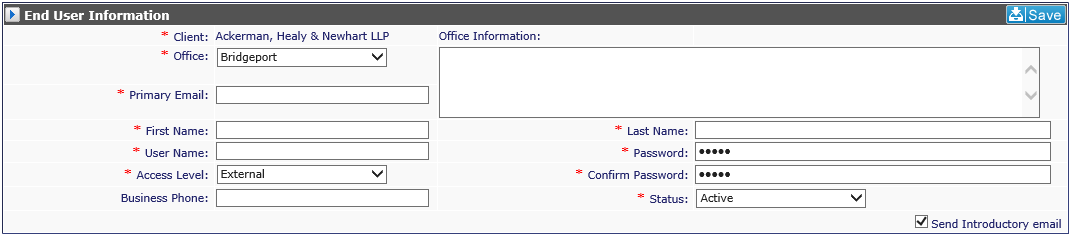
If you wish to add a new employee to the system:
NOTE: Items marked with a red asterisk (*) are required.
- Click on the New button at the top of the screen
- Fill in the information in the panel, including selecting the Location from the drop down. (If your office has only one location, this will be the default)
-
Location - drop down of the offices associated with your vendor
-
Primary Email - the user's email address
-
First Name
-
Last Name
-
User Name - defaults to the email address. Can be changed
-
Password/Confirm Password: There is a default password of revelaiton1 in the system. If you wish to change this, make sure the Password matches in both locations
-
Access Level - External: able to see their own tickets; External Admin: able to see everything in the system.
-
Business Phone: Their direct number, if available
-
Status: Active
-
Send Introductory Email - uncheck this if you do not wish Revelation to send them an email with a link to the site, their login and temporary password