As an Admin Level user, you are able to create custom views when using the Grid View on your Home Page of Revelation helpdesk.
To Create a View: |
|
|
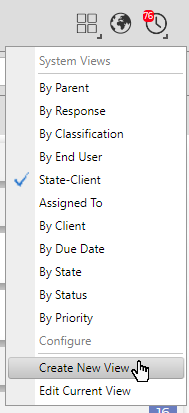
Right click on the Grid view button on right hand side of the home page. Select Create New View |
|
|
Create a new view name. |

|
|
|
|
To Group Items |
|
|
Select the Column to group by |
|
|
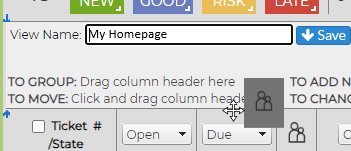
Drag column header to Dialogue Box at the top of the grid
|
|
|
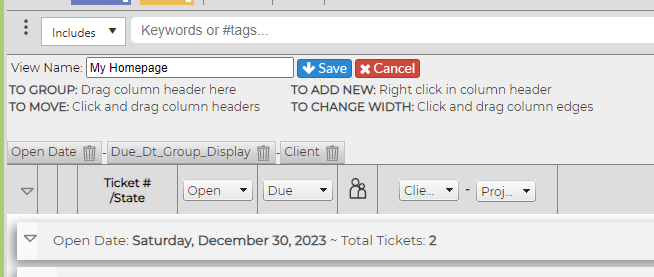
You will then see a Grouped By header and, if multiple columns have been added, it will be a string showing the order for the grouping. |
|
|
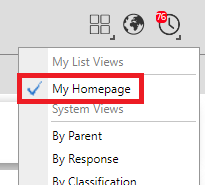
Click on Save to add the custom view to your list. It will now be available on the drop-down list. |
|
To Move Columns |
|
|
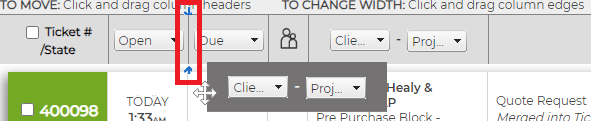
Hover over the column to be moved until you see the double arrow. Slide along the columns to the point you want the column. You will see the double arrows showing where the new location will be (shown in small red box). When you see the "Drop here to reorder" message, let go of your mouse. |
|
To Remove a Column |
|
|
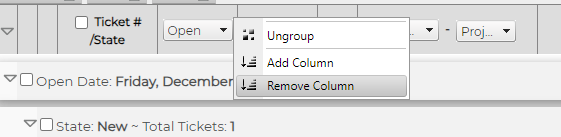
Hover over the column to be removed and right click your mouse. Select Remove Column from options. |
|
To Add a Column |
|
|
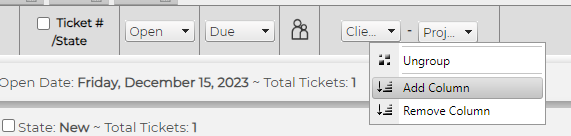
Right click in any of the column headers and select Add Column |
|
|
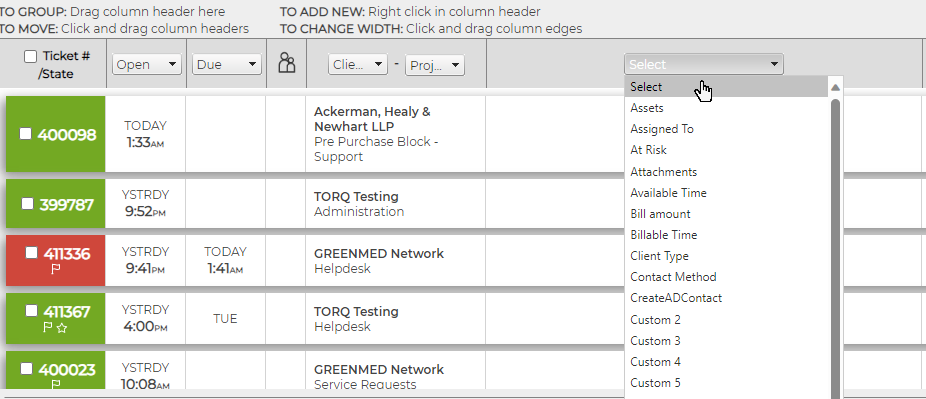
A Column with Select will appear - choose the header from the drop down. |
|
Adjust Column Size |
|
|
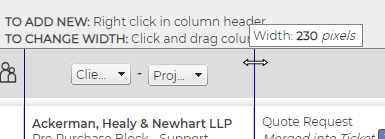
Hover over the column until you see the arrow. Drag to make the column the desired size. |
|
Delete a View |
|
|
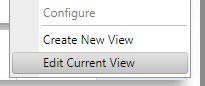
Right click on the Grid view button and select the view you wish to delete. Once the view has loaded, right-click the Grid View button again and select Edit Current View. |
|
|
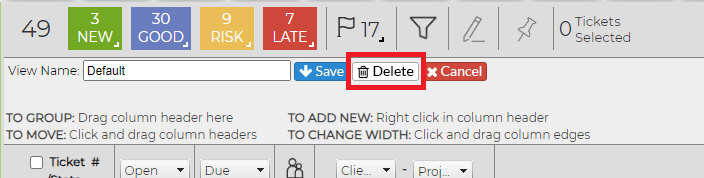
Select Delete from the dialogue box. |
 |