Logging a Ticket against an Asset
If your provider has activated it, you will see a button on in the Navigation area at the top of the screen for Assets.

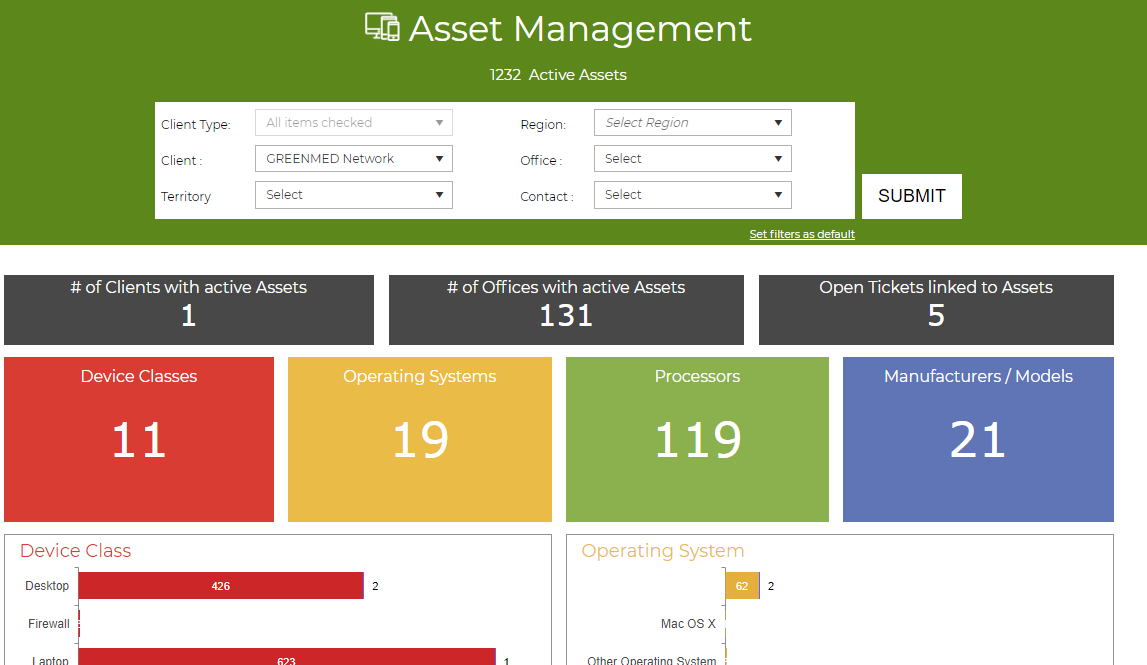
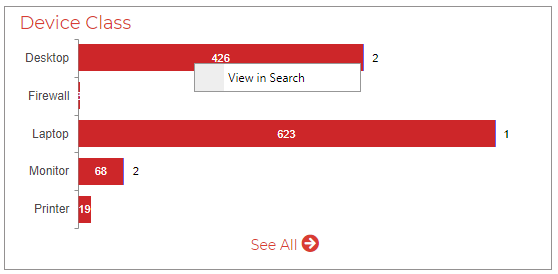
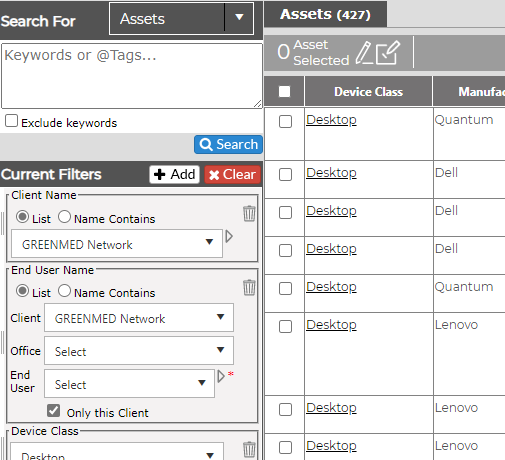
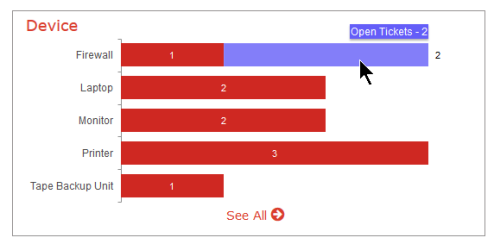
This dashboard provides the information on assets your help desk has a record of in their system. By clicking on any of the boxes, you can select the View in Search option to view the desired assets in Revelation's search feature.
 |
|
You will also see an indicator if there are any open tickets against the devices. Clicking on the Open Tickets indicator will give you the option to view all relevant tickets in Revelation's Search feature.
If you have multiple locations, and are authorized to see them, you can use the drop downs at the top of the screen to filter by your Region or Location.
Logging a New Ticket against an Asset
Note: This feature may not be available to you, and is based on the permissions given to you by your provider in the admin section.
In the Search screen, select an available asset by clicking the box to the left of the asset. It will display the number of assets selected.
You may select more than one available asset to log a ticket against (subject to available assets).
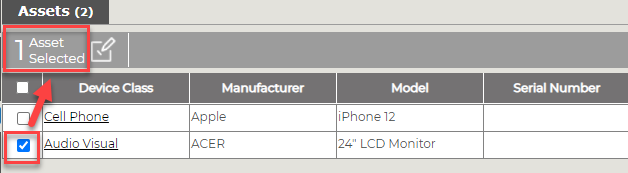
Then, click on the Bulk log ticket icon.
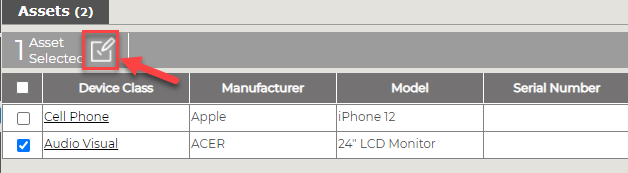
You will then be brought to a Log a New Ticket screen. The available asset will now be linked to the new ticket you are logging through the Asset tab. Other available assets (if applicable) will be displayed by clicking the Linked Asset drop down. Fill out the remaining required ticket information, then click Log.
Note: This feature is based on the permissions given to you by your provider in the admin section. It may not be available to you.
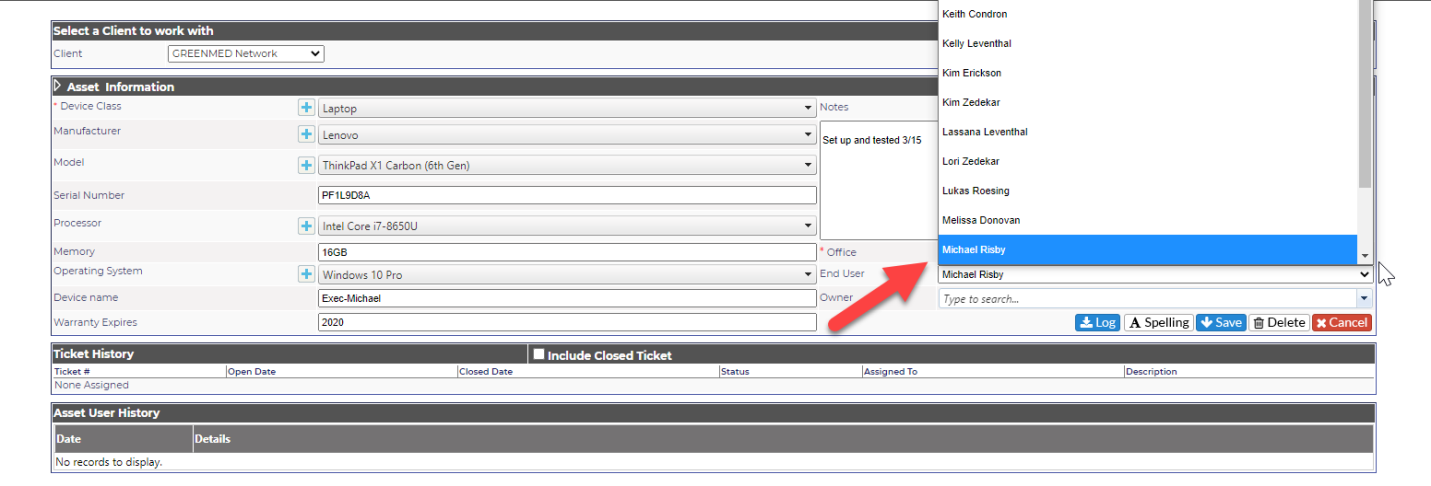
In Asset information, click on the office, end user, or owner (depending on the access provided) and a drop down will display, allowing you to reassign the available asset. Click Save.