
Right Column - Home Page view options; Feed options
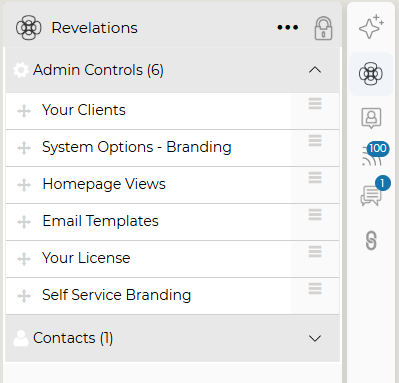
On the top right side of the screen, there are the buttons for the various views - Grid, Map, Timesheet. To their right are six icons: a notification bell, a Revelation logo, a silhouette, a set of three sliders, a speech bubble, and a chain. These are for Ask Rai (if Rai is enabled), Revelations, Contacts, Activity Feed, Chat, and Link Outs.
NOTE: All features in the right column toolbar can be reorganized based on user preference - select the three dots at the bottom of the icon list, then click and drag the six options around in whatever preference the user has.
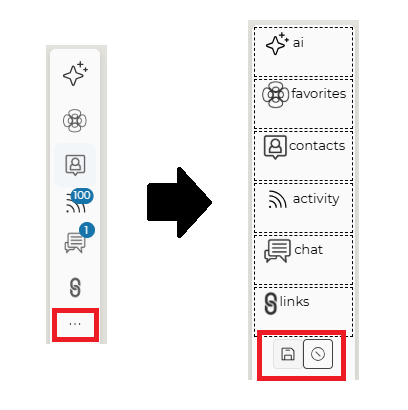
Remember to click the Save icon to save any changes made.
NOTE: If both the left column and any option for the right column are unlocked, the entire home page will show just tickets.
Right Column - Home Page view options; Feed options
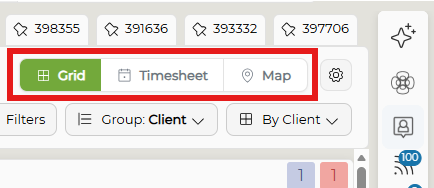
The buttons located at the top right corner of your home page will change the page view.
By clicking on one of the stacked icons to the far right of the screen, a fly out menu will show either your Activity Feed, your active chats, your Revelations, or your list of contacts in Revelation.
Notifications
Notifications within Revelation now appear in your Masthead, next to your profile picture.
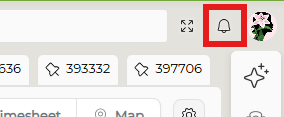
Your notifications allows for the communication and sharing of information within Revelation outside of tickets or projects. You can post and view messages internally which relate to ongoing support issues. Post a new message by clicking the notification bell and then clicking + .
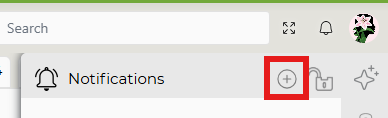
The messages will show the person's Profile Image as part of the message.
- For instructions on how to post to the feed, see Message Feed.
- For instructions on how to add your Personal Profile picture, see Profile Image under Alerts.
Link Out
Link out provides quick links to various Internet sites. Sites may be hard-coded into the system in the Staff Settings section under System Configuration in the Admin section. The maximum allowed by Revelation is five (5) links. If five defaults are set, staff will not be able to change those links. However, if available, by clicking on the pencil icon, you will be able to add sites you frequently use.
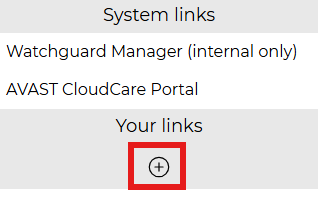
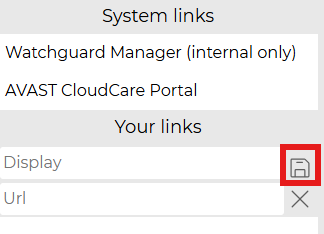
To add a link: click on the + icon, type in the URL and display name, and click the save icon when done. To cancel, click the X.
 |  |
Lock the Feeds Open
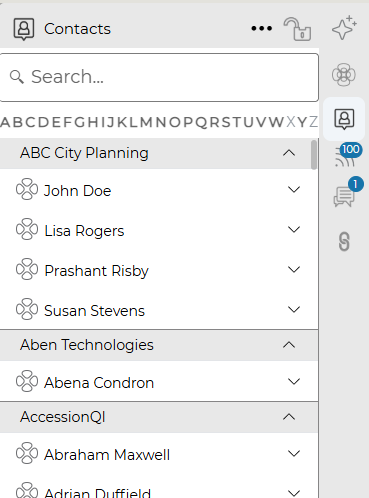
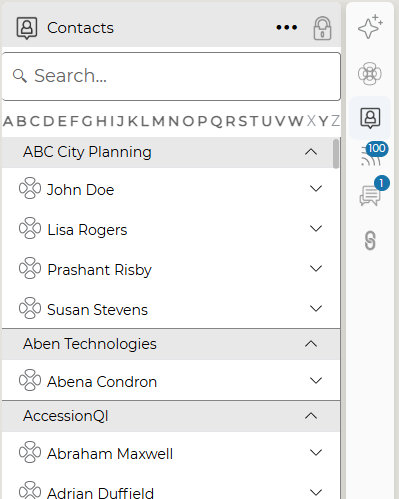
By clicking on the lock icon on any of the fly outs, Revelation will open the righthand toolbar and open the icon of your choice: the remaining icons are grayed-out and can be clicked to toggle between options. When locking the toolbar, the view buttons will move, as will the home page view, so that the locked fly out menu fits on the page. (i.e. If you select the Contacts icon, the Contacts toolbar will show - if you then then click on the Revelations header, the Revelations toolbar will appear.
| Single Fly Out | Locked Fly Out - Contacts selected | Locked Fly Out - Revelations selected |
 |
 |
 |