
Get Revelation Bridge App from the Microsoft Store
The Revelation Contacts App is a free add-in, available through the Microsoft Store.
Microsoft Account
NOTE: You will need a free Microsoft account to get the app.
Because the Revelation Contacts App is written as a Microsoft add-in, you will need a free Microsoft account to get the app. If you don't have one, it is free, and you can sign up at the Microsoft Marketplace.
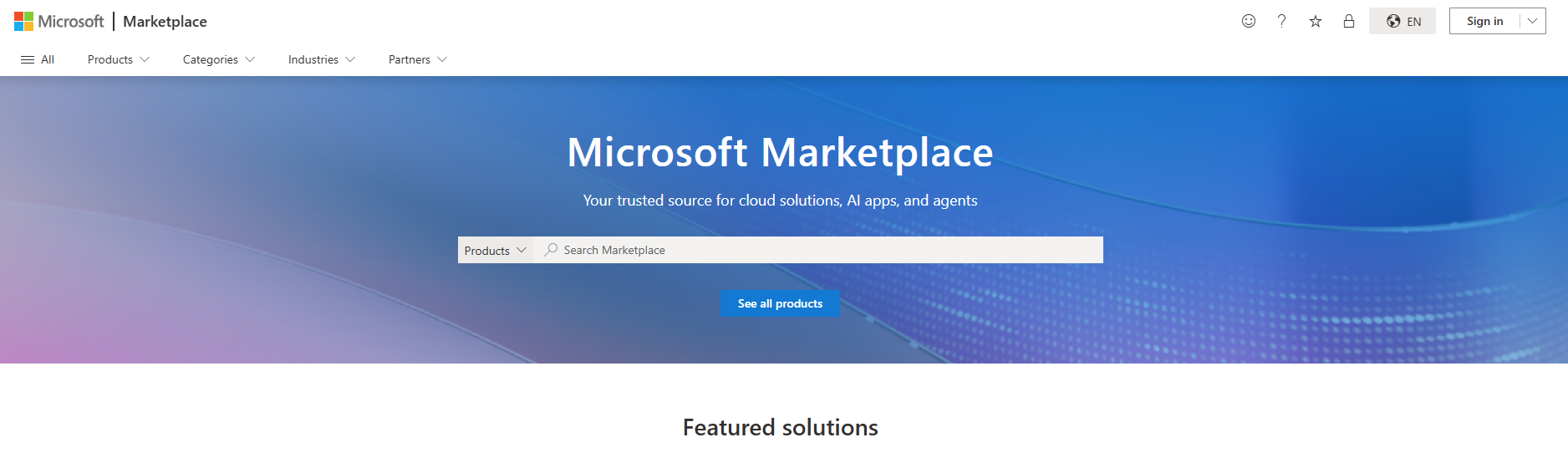
NOTE: depending on your browser, Microsoft Marketplace may appear slightly different.
| Microsoft Edge | Google Chrome |
|---|---|
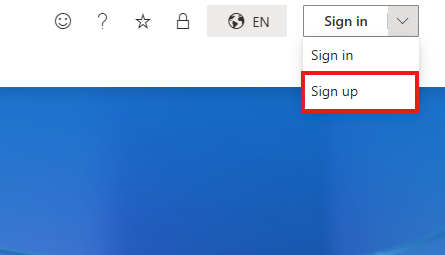 | 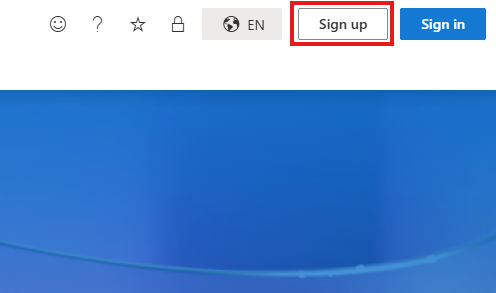 |
Click on the Sign up link from the main toolbar to set it up and follow the prompts.
Once you have the Microsoft account set up, the installation process is simple:
Get Revelation Bridge App from the Microsoft Marketplace
- Go to the Microsoft Marketplace - the direct link for the Revelation Bridge App is here.
- Click on the Get it now button
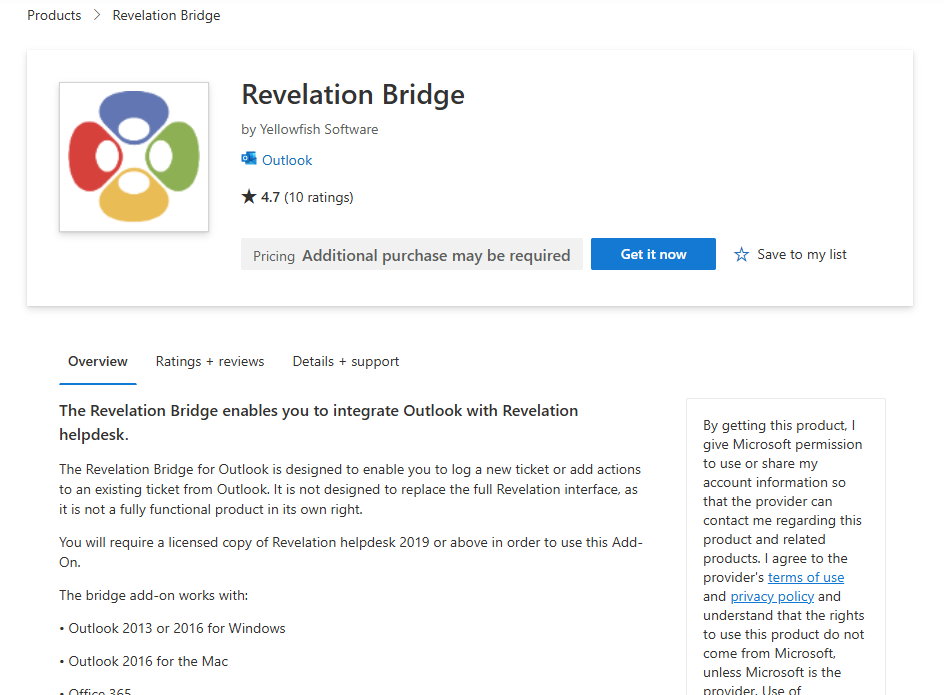
- Sign in with your free Microsoft account, if requested
To install the Revelation Bridge App add-in
From Office 365
- Open Outlook in Office 365
- Click on the Settings icon in the upper right of the screen
- Under My App Settings, click on Mail
- On the left side of the screen, open the General heading
- Click on Manage add-ins
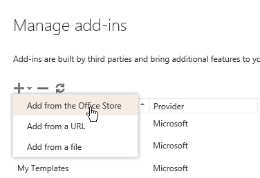
- Click on the plus symbol and select Add from the Office Store
- Search for Revelation
- Select the Revelation Contacts App
- Click on the Add button
- This will take you back to your Office 365 account
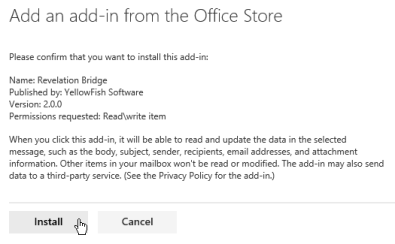
- Click on Install
- Click on OK
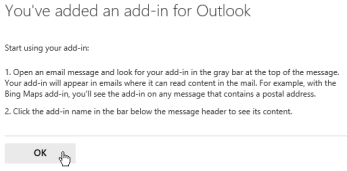
This installs the Revelation helpdesk add-in from the Microsoft Store.
From Outlook
- Click New Email to open the New Message window.
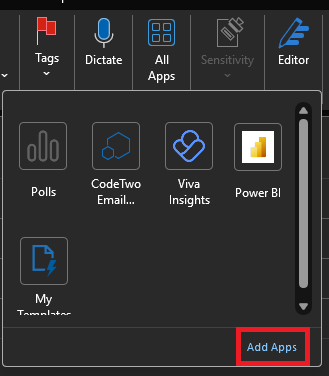
- On the right side of the Message tab, select All Apps

- Click Add Apps from the expanded window.
- In the search box, type Revelation and hit Enter or Search.
- You should see the following results:
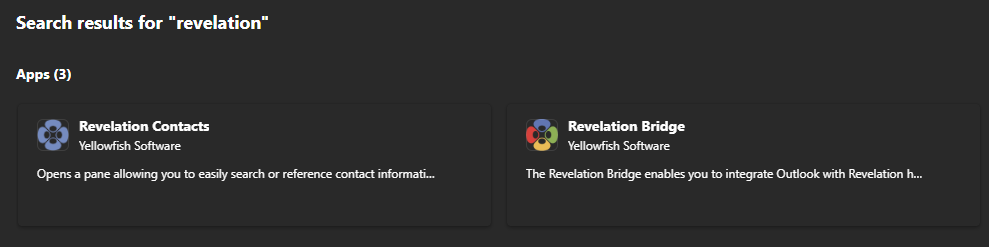
Select the Revelation Bridge result and follow the prompts to add it to your Outlook.