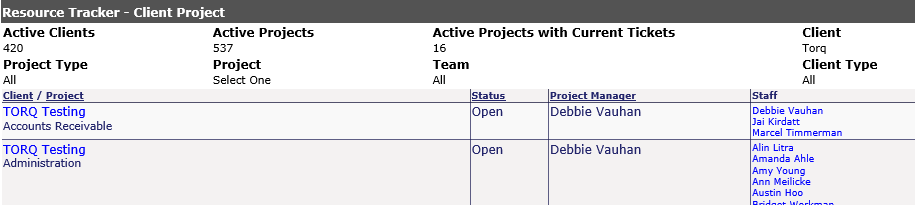
This report shows who is assigned to open projects in your company. At the top, it shows how many active clients and projects are in Revelation before any client information is displayed.
To run a full report, as with most of the report sections, leave the pull downs at the default (Select One) and hit the Display button.
The options for this report are as follows:
Client Type: Select the type or leave at the default for all
Client: Select the appropriate client or if you want to see all the clients, simply leave the pull down at the default.
Project: Once a client is select all of their associated projects will appear in the pull down. When no Client is selected, no choice is available.
Cost Center: Leave at default for all. You may select one, or by clicking on the arrow, select several using the Ctrl key.
Team: Select a specific team or leave at default for all.
The header for the report will show how many current tickets for active projects, based on the filters, are open. There are four columns in this report. All but the last can be sorted.
Client Name/Project: Client name and project name
Status: The status of the project
Project Manager: The project manager assigned to the project
Staff: Shows the staff with open tickets for the particular project
By clicking on a client and/or project (if the client has more than one), you are brought to the Project History screen, which provides the following information:
Name: Project name
Client: Click on the link and you are taken to the Company Information page
Contact: Click on the link and you are taken to the Personnel information page for the contact
Project Manager: Click on the link and you are taken to the Personnel information page for the manager
Status: For the project: Open, On Hold, Inactive, Closed
Time Left: Time remaining on the block of time, project or monthly service retainer
Start Date: Date the project was entered into Revelation
Due Date: If there is a due date for the project
End Date: Date the project was closed
Description: Brief description of the project taken from the Project Information page
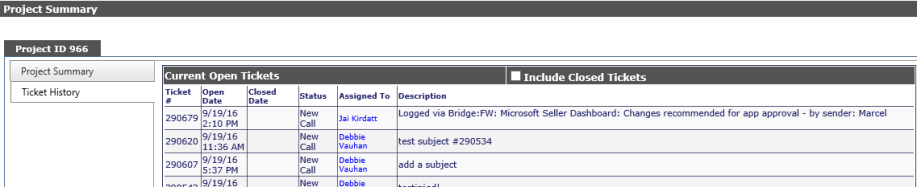
Project Summary: All open tickets are shown on the Ticket History tab. Click on the ticket number to be taken to the ticket notes. Should you need to see closed tickets, simply check the Include Closed Tickets box and the screen will automatically refresh with the additional closed tickets.
Resource Tracker by Client
Project Summary View