
In the upper right hand area of the masthead, there is a search tool which acts as both a Quick Search tool or the first step of a more detailed advanced search.
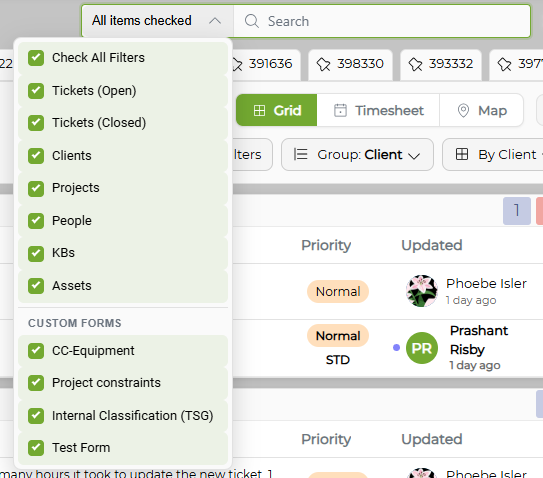
There are three parts to this search feature: a button (magnifying glass), a text box, and a drop-down menu.

In the text box, you can type single words separated by spaces or commas along with some standard search syntax. Multiple words separated by spaces will be treated as AND searches, but you can use the ‘+’ symbol as well. Adding a minus sign ‘-‘ before a word (no space) will exclude items containing that word.
For example:
- Search Term: desktop -virus
- Result: any item with the word ‘desktop’ and not the word ‘virus.’
To perform an OR search use the ‘|’ symbol, and you can use brackets () to further refine your search.
For example:
- Search Term: email + problem -(virus | spam)
- Result: Any item containing the words "email" AND "problem" AND NOT "virus" OR "spam"
You can also use "" to search for a specific term such as "email problem."
The drop-down menu is for selecting the type of result you are looking for – tickets, clients, people, etc. You will also see entries for any custom ticket forms/fields you have created. NOTE: You must have at least one item selected in order to use Quick Search.
Lastly, the magnifying glass button will initiate a full search which will display the results on the search page.
The drop down will display the items you have chosen. If you select more than two items, the drop-down field will indicate how many are selected.
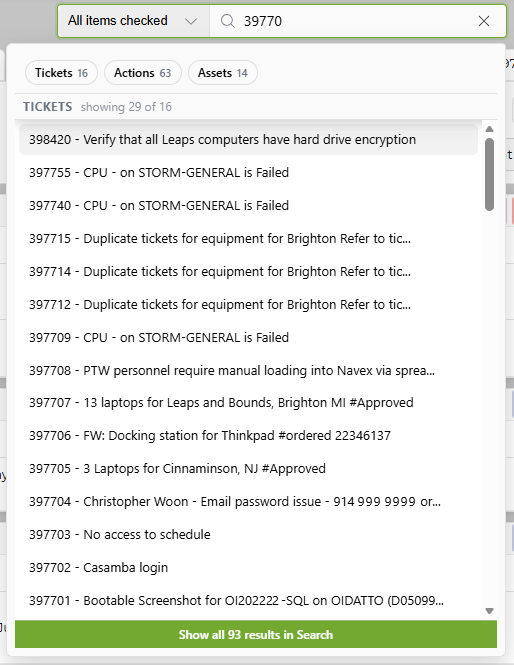
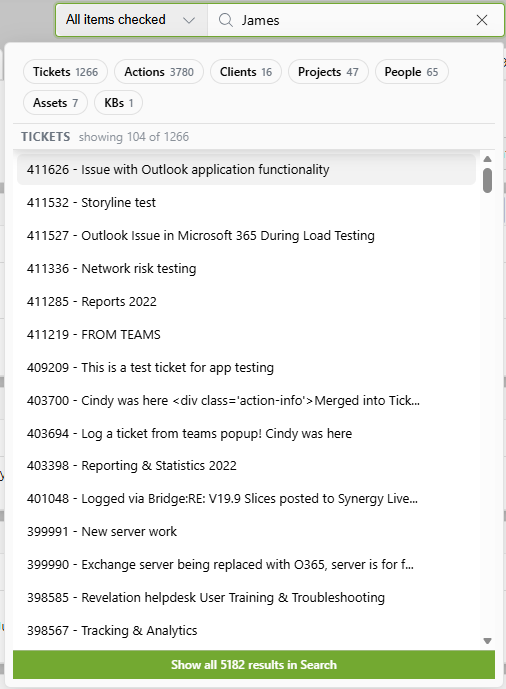
As you type in the text box, Revelation Quick Search will start searching immediately for results which match your query. Typing all or a portion of a ticket number will display the 50 most recently logged tickets that match. Quick Search will summarize the result categories in the top bar (if enabled?). If active in the Admin area, the information in parentheses will be either the Client, End User, Office or Project associated with the ticket.
Similarly, if you type the name of a staff person or an end user, you will get a list of associated tickets. Clicking on a category summary at the top of the results list will automatically scroll to the relevant result section.
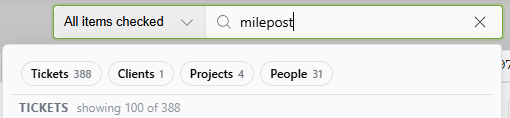
If you change the contents of the text box, Revelation will indicate it has begun a new search with a buffering icon in the text box. You should wait for the results to appear.

If you type a company name, the drop-down result list will display all open tickets, projects, and people related to that client.
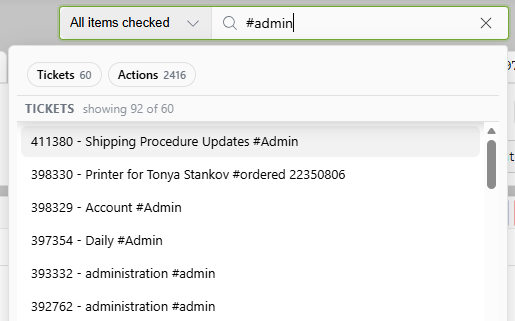
If a hashtag has been used in a ticket, you can search for the ticket or tickets using #(text).
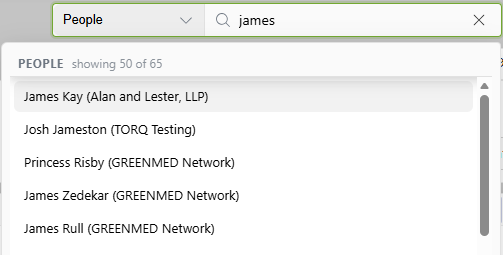
By changing the result types, you can use the Quick Search to find clients and people. In this case, clicking on an item in the result list will cause the person’s or client’s account information to be displayed.
If there are more than 50 items in your result, you can click on the total number at the bottom of the drop down to see the entire result displayed on the search page.
NOTE: This feature is not available for Core users.