Introduction
This document will outline the different components and services required for the Revelation connector for Power Automate and the configuration required for Revelation Server (on-premise) installations.
The Revelation helpdesk connector allows you to create and update items in your helpdesk such as tickets, clients, users and assets using Microsoft Power Automate flows which connect to the Revelation helpdesk API using OAuth authentication. You can also take advantage of the extensive list of triggers allowing you to integrate your business processes based on events that occur in Revelation helpdesk.
Connector Flow
The diagram below illustrates how the Revelation connector authenticates/authorizes users and connects to your Revelation helpdesk data.
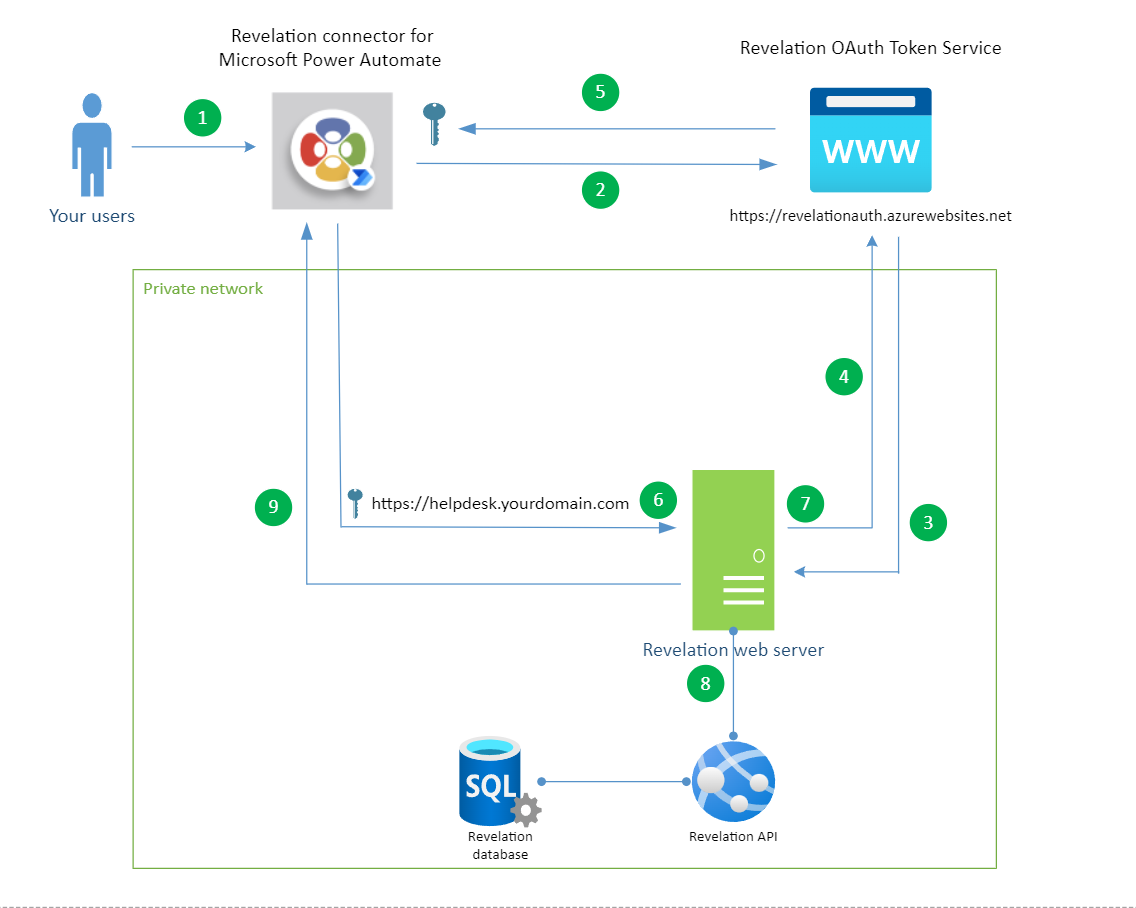
Here is a description of the steps in the diagram above:
1.) Your users will configure the Revelation helpdesk connector in Microsoft Power Automate and will enter the Revelation URL for your helpdesk. For instructions on getting started with the connector follow this link: https://revelationhelpguide.clickhelp.co/articles/#!revelation-serverhelp/getting-started-power-automate
2.) Once you have added the Revelation helpdesk connector to your Power Automate flow you will need to login. You will be prompted to enter your Revelation username and password or sign in with Single Sign On with any of the configured SSO providers you have enabled in Revelation.
3.) The Revelation OAuth service will check your login credentials and check if your account is active in Revelation helpdesk. It uses the URL you entered in step 1 to access your Revelation instance securely using an encrypted access token.
4.) Revelation helpdesk will send a response indicating if the user account has been authenticated successfully.
5.) The Revelation OAuth service will issue a JWT Access Token which is sent back to Microsoft Power Automate and contains the user’s identity. This token is stored in the Revelation connector and is used to get Refresh Tokens when the Access Token expires.
6.) When you setup Triggers and Actions in the connector it will send requests for data to your Revelation helpdesk API on your private network and will use the JWT Access Token to authorize your request.
7.) The Revelation API will query the Revelation OAuth service to ensure the access token is valid, authorized and has not expired. An invalid access token will generate a 401 (Unauthorized) error code in the connector.
8.) If the access token is valid, then data is retrieved from the Revelation API.
9.) Revelation data is sent back to Power Automate for the further processing. Triggers that have been setup in the connector will post data to Microsoft Power Automate from the Revelation web server.
Setup & Requirements
Revelation Server 2022 (V22.6.0) or later is required to use the Revelation helpdesk connector for Power Automate. To use the connector you MUST host Revelation securely (HTTPS) using a valid SSL certificate. This is to ensure that all communication with external services is encrypted and secure.
There are also additional firewall configurations that are needed if your Revelation Server instance is hosted on a private network and is not accessible to the internet. This section details these firewall requirements:
- Your Revelation helpdesk URL to be accessible outside your private network. This would require inbound HTTPS (TCP port 443) connections through your firewall. This is required for Steps 3 & 6 in the diagram above.
- The Revelation web server will need to make outbound HTTPS (TCP port 443) connections to the Revelation OAuth Service (https://revelationauth.azurewebsites.net). This is required for Token validation in Step 7 and will result in 401 (Unauthorized) errors in the connector if not enabled.
- The Revelation API will POST data to Microsoft Power Automate for Triggers (events) that occur in Revelation (Step 9 in the diagram above). This will require outbound HTTPS (TCP port 443) to specific IP Addresses based on your location. For a detailed list of required Outbound IP Addresses please see: Managed connectors outbound IP addresses | Microsoft Docs