The Power BI App provides a sample/demo data set upon initial installation
We recommend you try using the sample data first, to familiarize yourself with the different reports and data visualizations.
Follow these steps to connect with your Revelation helpdesk Data.
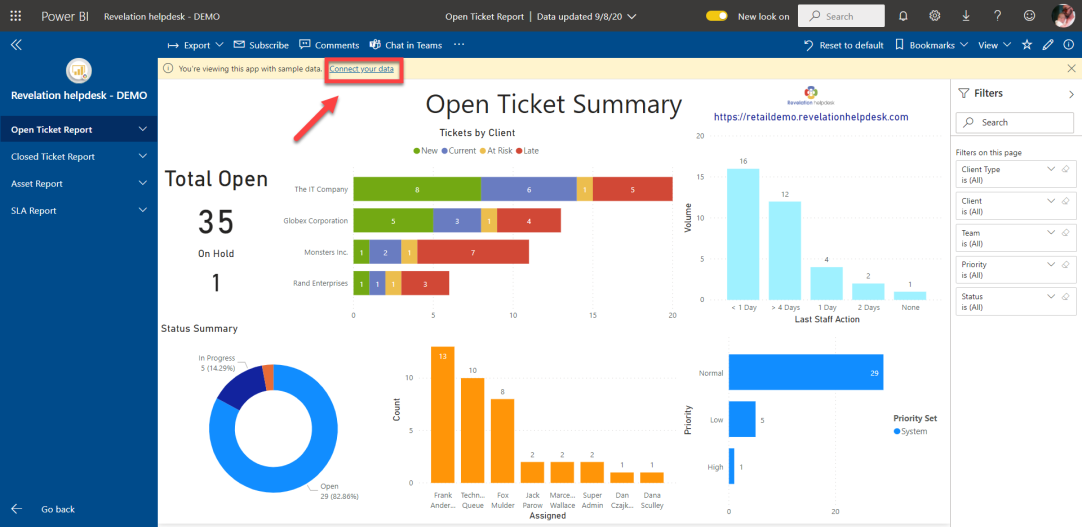
1.) Above the Revelation helpdesk - DEMO report, select Connect your Data.
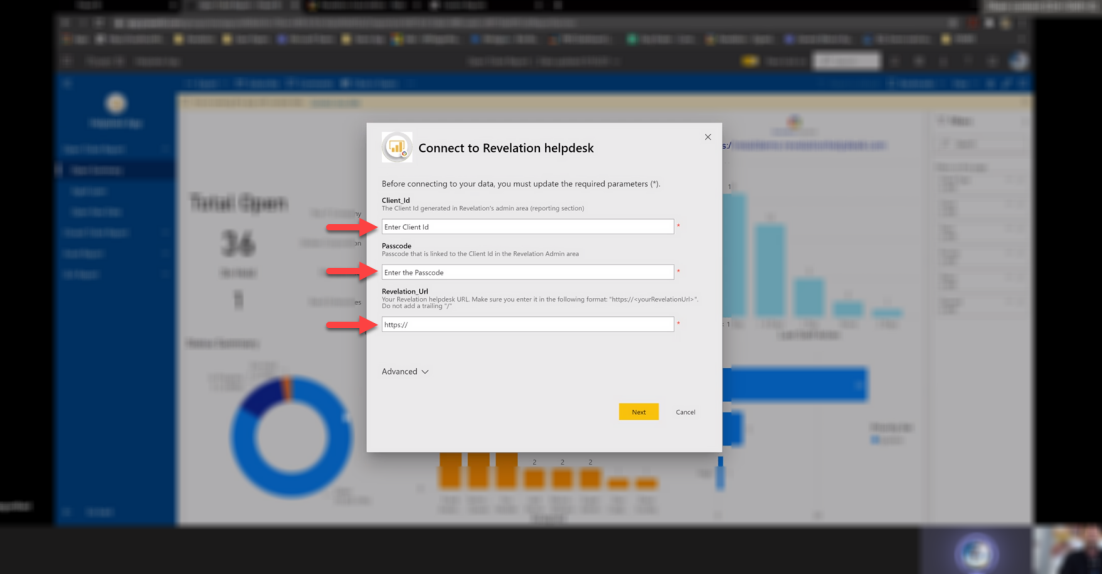
2.) You will then be prompted to enter your Client ID & Passcode, generated from Revelation helpdesk in the Power BI Integration admin section; as well your organization's Revelation helpdesk Url. Once input, select Next.
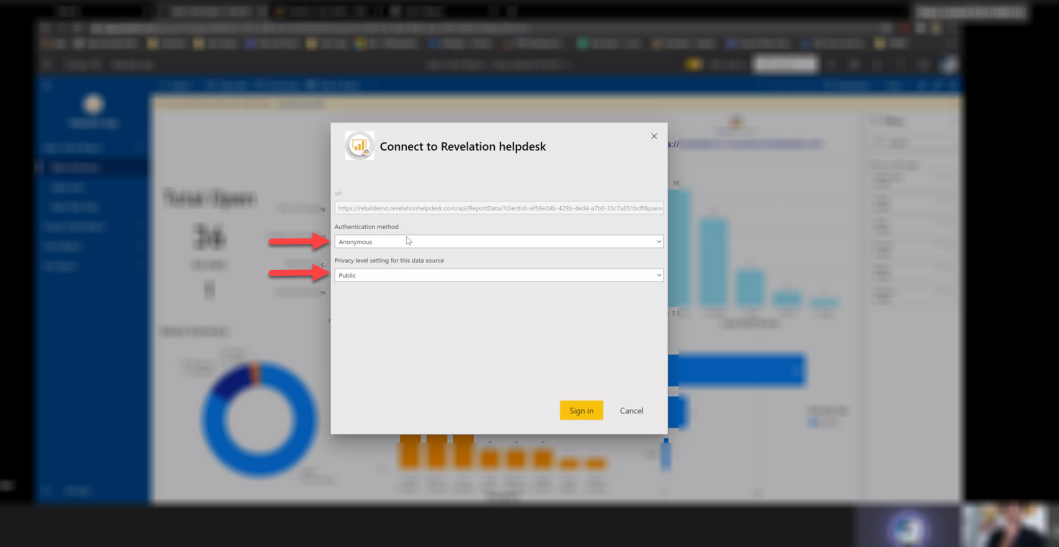
3.) You will then be prompted to choose an Authentication Method and Privacy level setting for this data source.
The Authentication Method should be set on Anonymous; and the Privacy level set on Public. Then, click Sign in.
5.) Once you are signed in, click on Apps on the sidebar menu. Your live data is now integrated into the App. Select the App to proceed to your Data.
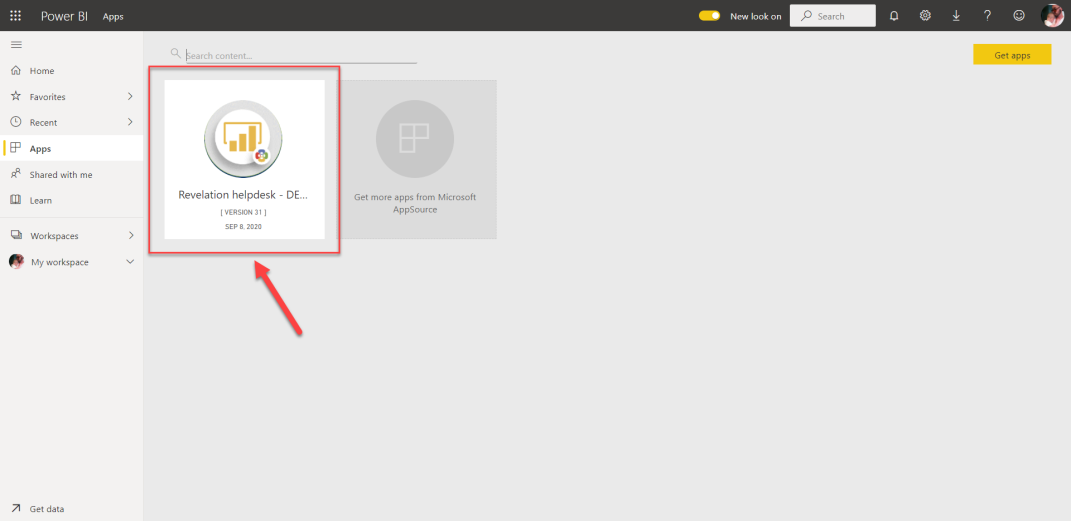
*Note: The Power BI App will automatically sync data from your Revelation helpdesk every night.
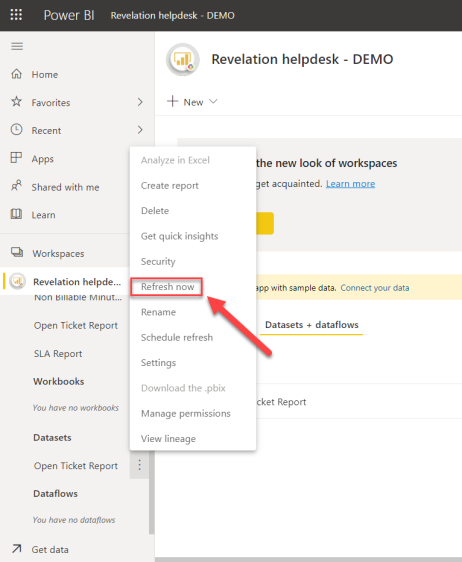
To Manually refresh your data:
1.) Select the Dataset you wish to refresh from the left menu bar.
2.) Click on the Dataset.
3.) Select Refresh Now