
Parent/Child: Ticket Status/Type/Priority
Log an Action to Multiple Child Tickets from the Parent Ticket
Parent/Child tickets tie multiple, related tickets together. When you open a Parent Ticket, a list of the associated Child tickets will be visible on the Ticket Details screen.
Create a Parent Ticket
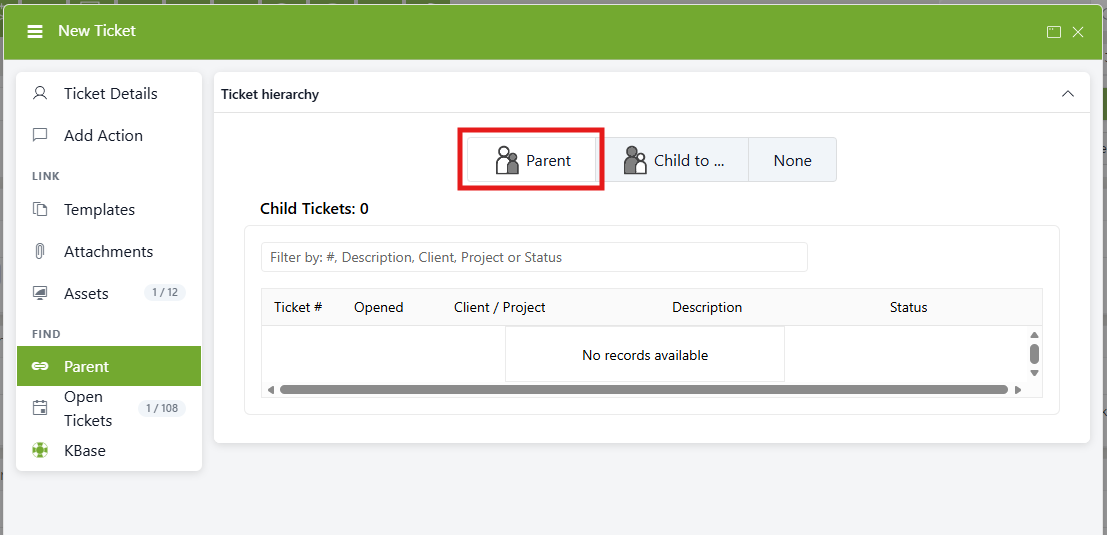
When you open a new Log a Ticket screen, there is a tab on the lefthand toolbar for assigning Parent/Child status to the ticket being logged. From here, you can elect to save the ticket as a Parent Ticket by clicking the Parent button.
NOTE: This can be done when logging a new ticket or when updating an existing ticket.

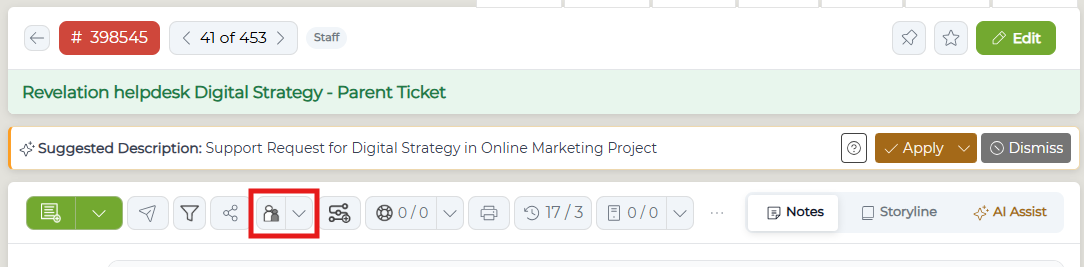
Once the ticket is logged, the Parent/Child icon at the top of the ticket will be shaded white, indicating the ticket's hierarchy status. Once a Parent ticket has a Child ticket, you can click the icon to view all child tickets in a new window.
Create a Child Ticket
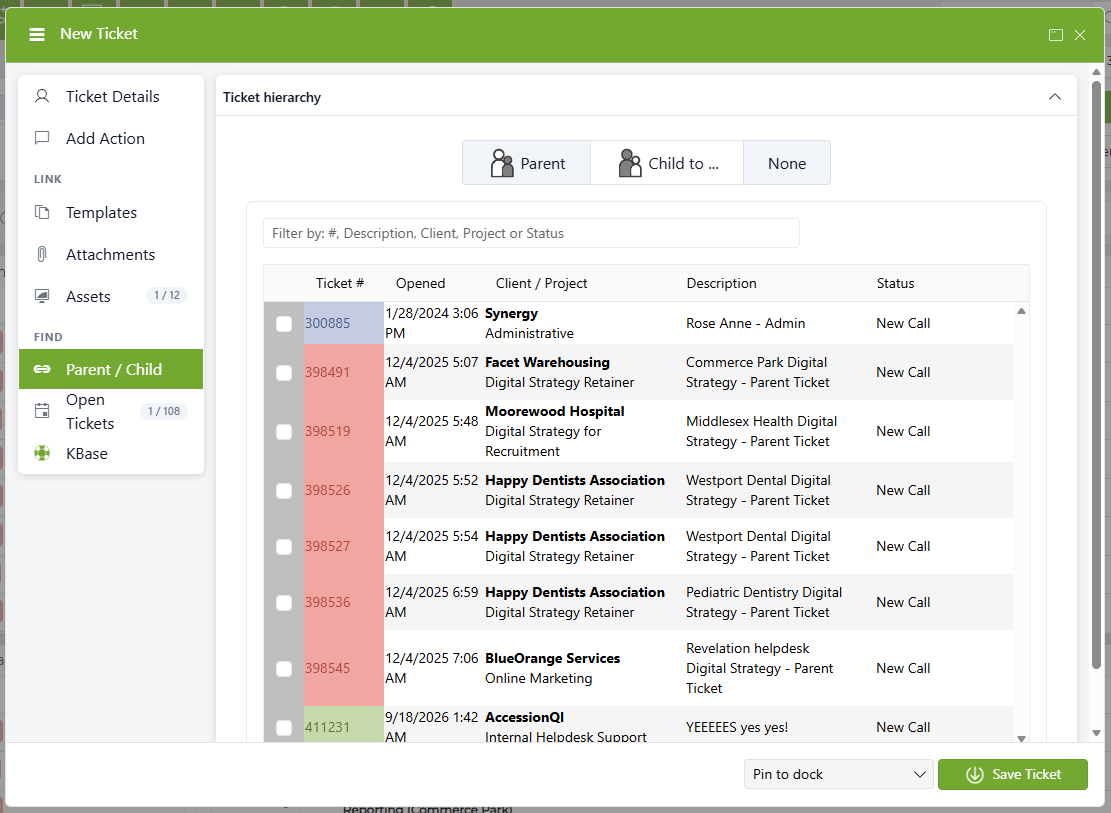
You can log a ticket via the Log a Ticket screen. Open the Parent/Child tab and select the Child to... button. A window will populate below your selection, where you can select from a list of tickets to choose from for the Parent ticket.
Once the Parent ticket is selected, the number will show at the top of the dialogue box.
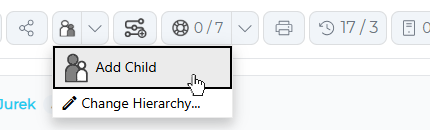
You can also log a Child ticket from within the Parent. Click the drop-down arrow beside the Parent/Child icon to bring up the selection menu. Log the Child ticket as usual.
NOTE: The Parent/Child tab on the lefthand menu will change to show which Parent your Child ticket is being linked to.
When you click Save, the Child will be created and linked to the selected Parent.
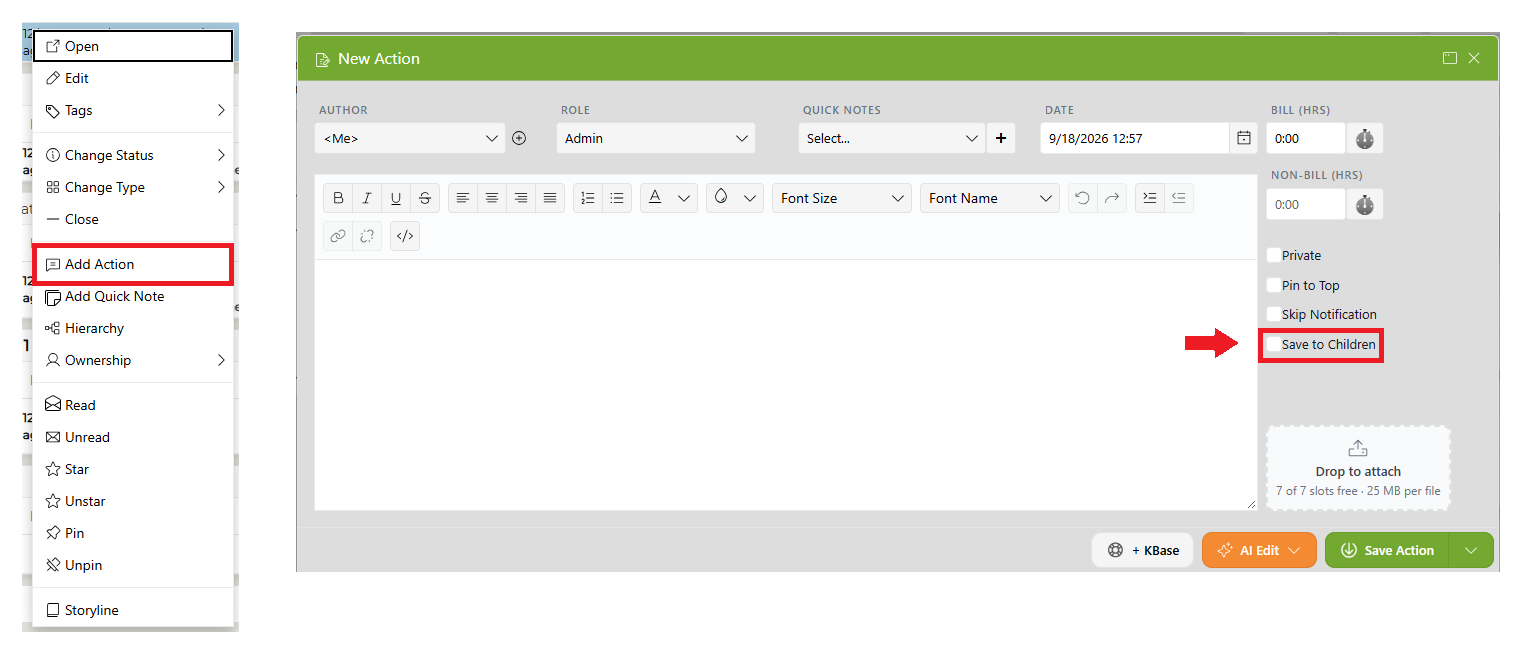
If you wish to add a particular Action Note to all the Children from the Parent ticket, click the Save to Children box and it will copy the Action Note to all assigned Children, as well as any time logged. Be sure you want it applied across the board.
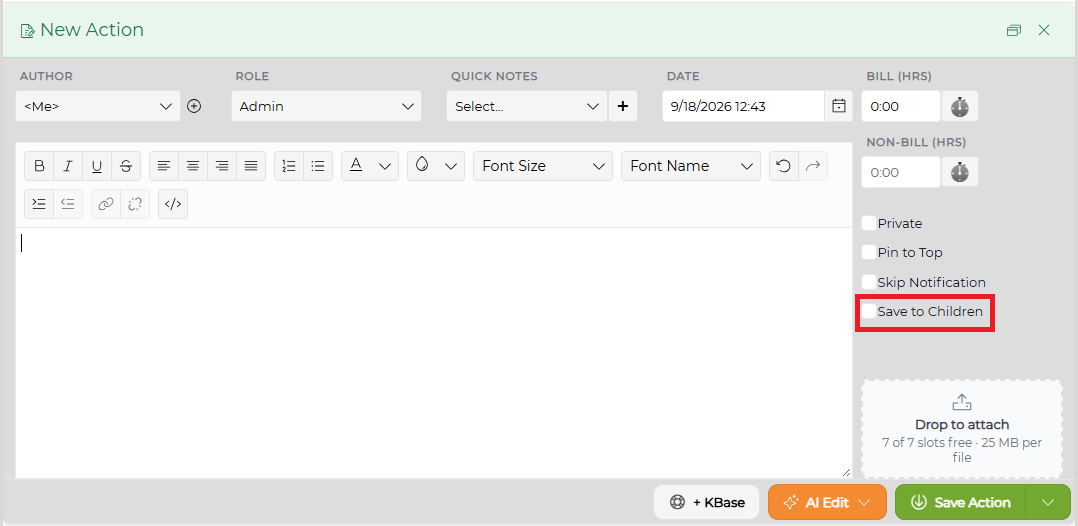

To remove the Parent identity from a ticket, click the Parent/Child icon within the ticket and click None from the 3-button menu at the top of the hierarchy window.
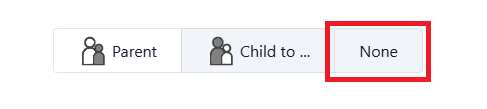
By selecting None, Revelation will remove the Ticket Hierarchy and revert the tickets back to standard tickets. You will receive a warning to accept or reject this from the system. If you do remove the Parent/Child relationship, a System Action (if activated) will be added to the ticket stating it has been removed with a time and date stamp.

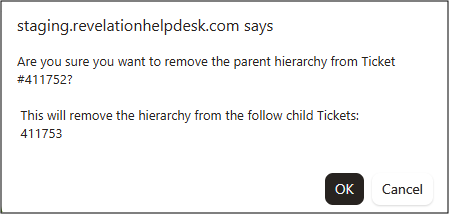
Closing a Parent will automatically close all the Children.
You may also change the hierarchy of a ticket by right clicking the ticket on the homepage. A fly out will display the options to make the ticket a Parent, a child (link to parent), add a new child, or just keep as a normal ticket.

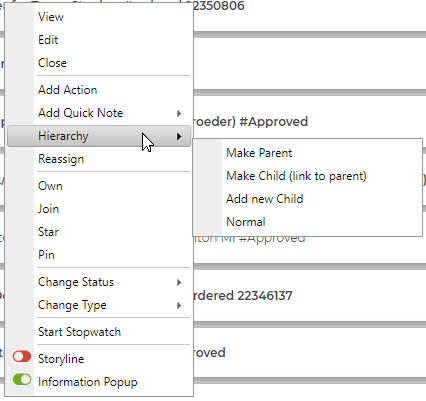
Log an Action to Multiple Child Tickets from the Parent Ticket
While logging an action to a Parent Ticket, you have the option to log that action note to the Children tickets of the Parent in lieu of the Parent.
By right clicking on the ticket, and selecting Add Action, a pop-up window will be displayed with the option to select Save to Children. Select the box, select save, and the action will be saved to the Child/Children of this Parent ticket.

Parent/Child Email Send
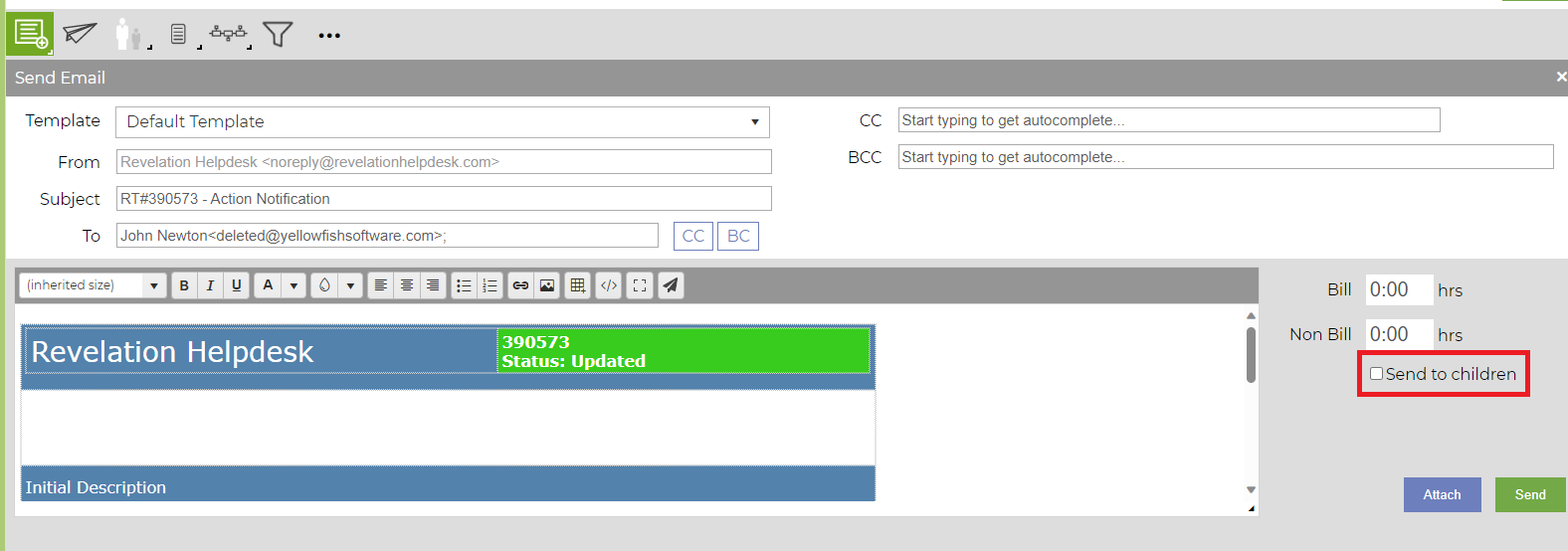
By selecting the "Send to children" option when sending an email through the parent ticket, all attached child tickets will receive the email.
Parent/Child: Ticket Status/Type/Priority
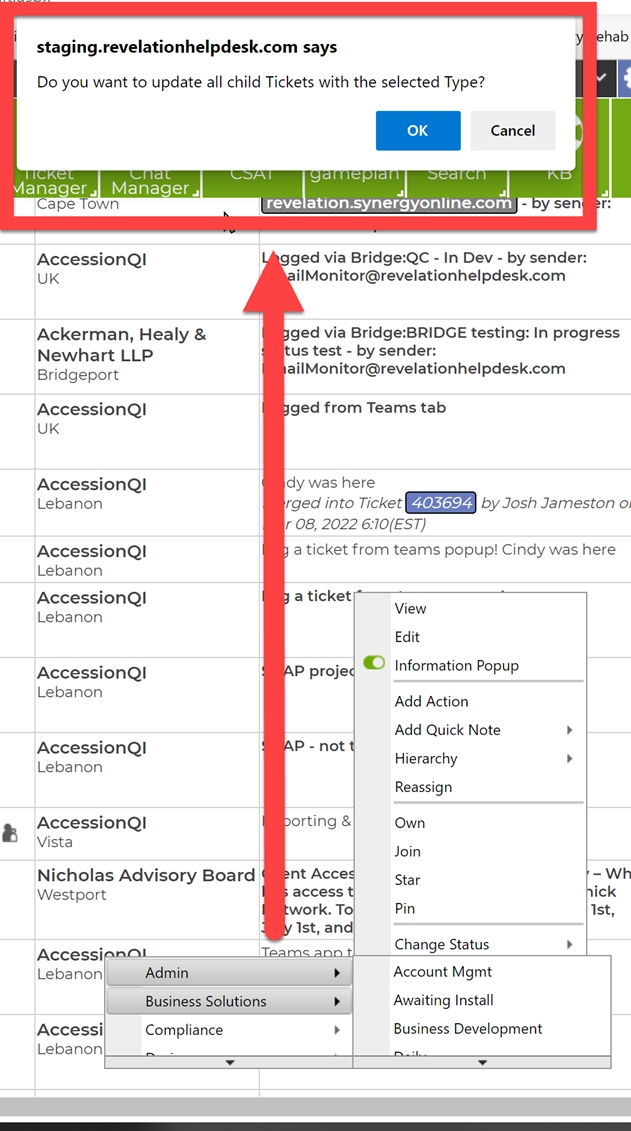
When making changes to a Parent ticket by right clicking the ticket on the homepage, you will now be prompted to cascade changes to all Child tickets associated with the Parent.
Parent/Child Time Logged
The Time Logged section when the ticket is a Parent or Child will look similar to the regular Time Logged area, but you will be able to toggle between the time logged against the Parent ticket, the Child tickets or the total time on all the tickets.
Parent Ticket Time | Child Ticket Time | Combined Ticket Time |
|---|---|---|
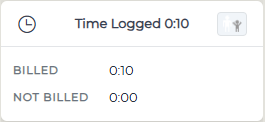 | 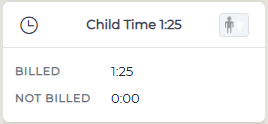 | 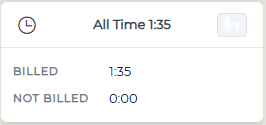 |
Simply click on the Parent-Child icon in the top right corner of the Time Logged section to toggle between options.