
Parallel Workflows
Along with the standard Sequential Workflow set-up, where steps must be completed in a certain order and cannot be completed without the previous step, Admin and Super Admin users can now create workflows where steps can be completed independently of one another.
Create a Parallel Workflow
Each action within your Workflow must be tied to a Step. Within the Workflow Actions field, click New to create a new step.

Enter the Step Name, assigned to staff member, description of the desired step, and the step's bill/non-bill time, then click Save.
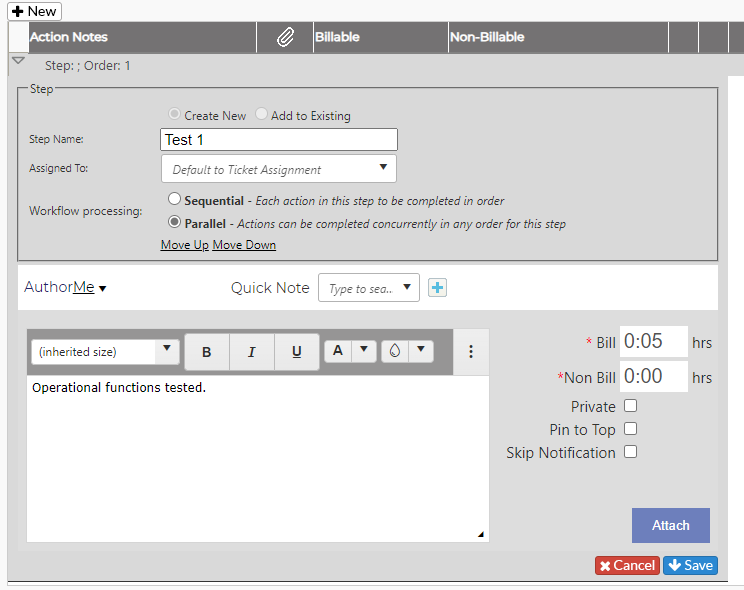
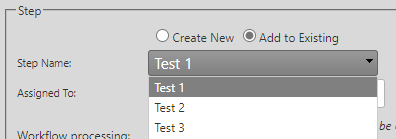
Once the step has been created, you can add parallel actions that can be completed at the same time. To set up a Parallel Action, click New to add a step and select the Add to Existing radio button to choose the existing step this parallel action will be tied to from the drop-down menu.
In the Workflow processing field, select the Parallel radio button.

You will then fill out the necessary information (description, bill/non-bill time, etc.) within the action and click Save. To discard an action, click Cancel.
Actions within a Step will look like the below:
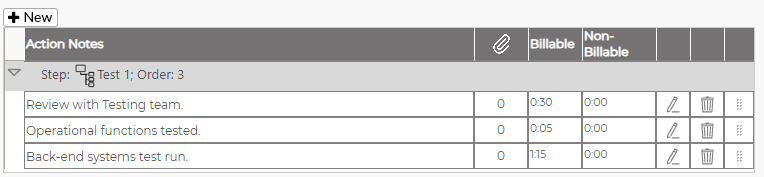
Continue adding steps and actions as necessary. Multiple steps with multiple actions will look like the below.
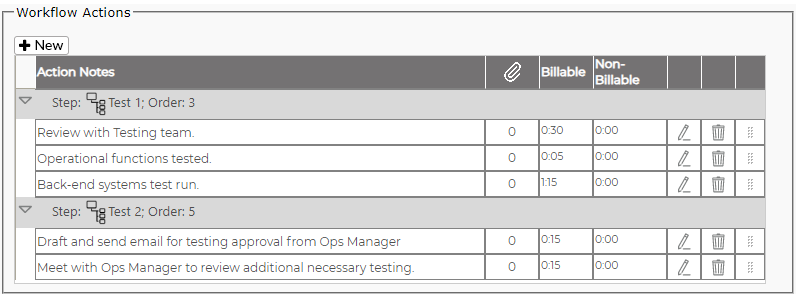
Once all steps and actions have been added, ensure you click Save at the top of the Edit Workflow field to keep your changes. Once your Workflow has been saved, you can apply it to a new ticket OR an existing ticket. Note: Once you apply a workflow to a ticket, you cannot undo the action.
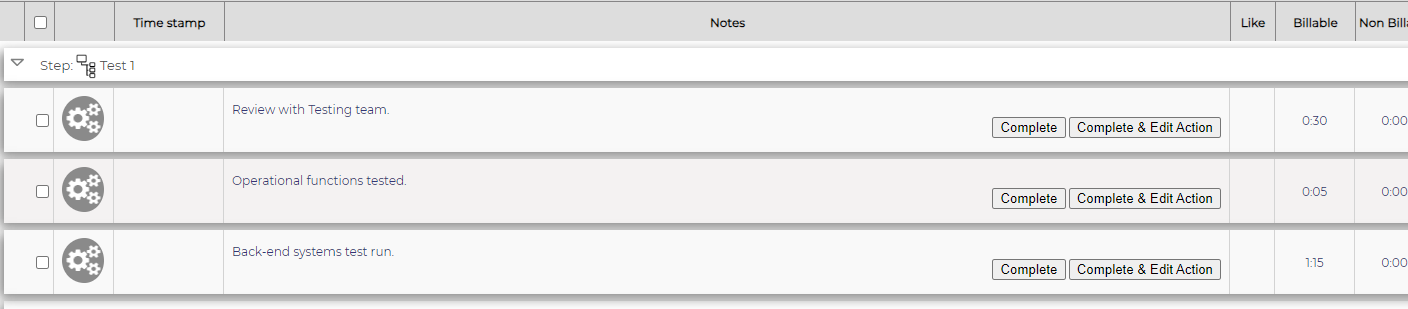
The parallel actions created will appear like below - end users within the assigned Team can click Complete to claim the action without any changes, or can click Complete & Edit Action to add any additional notes or time to complete the work.
Once all actions within the step have been completed, Revelation will automatically assign the ticket to the end user assigned to the next step.