The selections for Multi Edit are just below the banner bar.
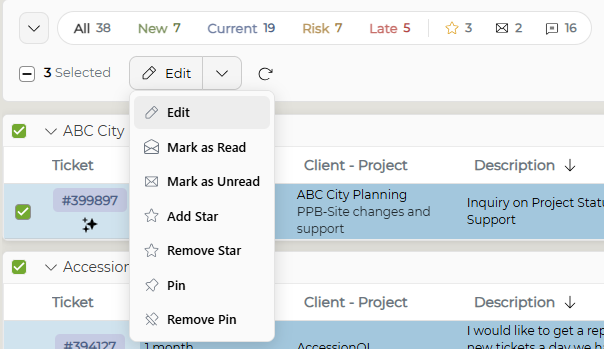
The functions are as follows:
|
Option |
Function |
|
All (Number of tickets) |
Selects all tickets on the current page |
|
New |
Selects only New tickets (green) |
|
Current |
Selects only Current tickets (blue) |
|
At Risk* |
Selects only At Risk tickets (yellow) |
|
Late* |
Selects only Late tickets (red) |
| Star | Selects only Starred tickets |
| Envelope |
Selects only tickets that are unread by current user |
|
(# Tickets Selected) |
The number of tickets selected |
|
Click the Edit button to begin editing selected tickets |
|
| Read/Unread; Star/Unstar; Pin/Unpin | Mark a ticket as read or unread; star or unstar ticket selections; add pin or remove pin from selected tickets. |
*If you have tickets which will go At Risk or Late at the end of day, another box will appear. It will be in the appropriate color (yellow for At Risk or red for Late) and have the number of tickets and EOD for End of Day. Those tickets will reach that state by end of business day.
The options are transparent - if you have no New tickets on your home page, the option will not appear in the banner bar.
Note: New and At Risk are based on times set in the Ticket Settings area of the System Configuration. At Risk and Late are also based on the Service Level Management settings, if enabled.
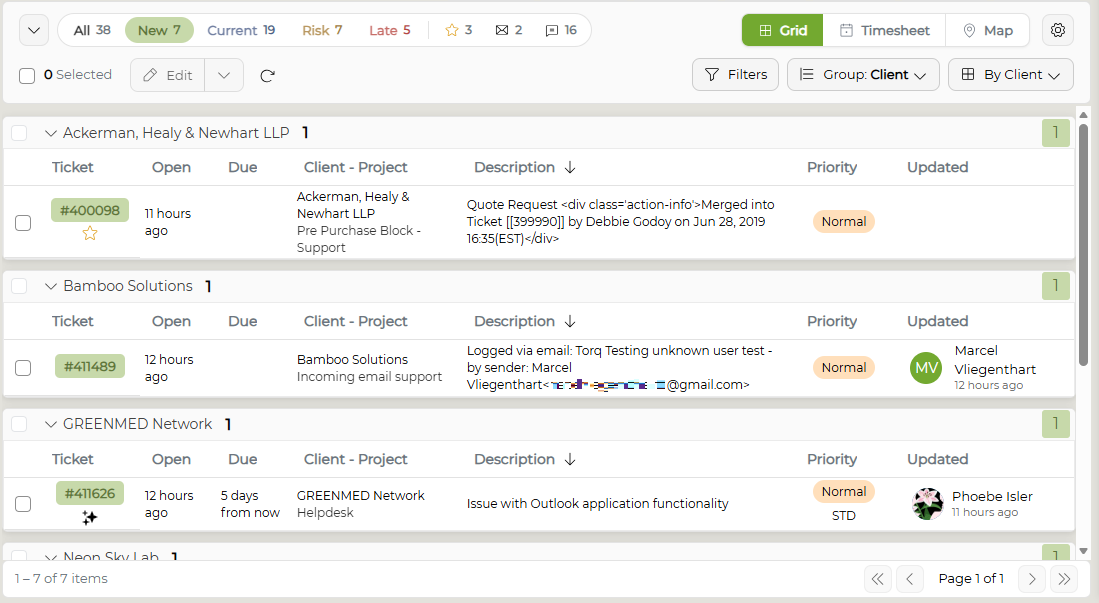
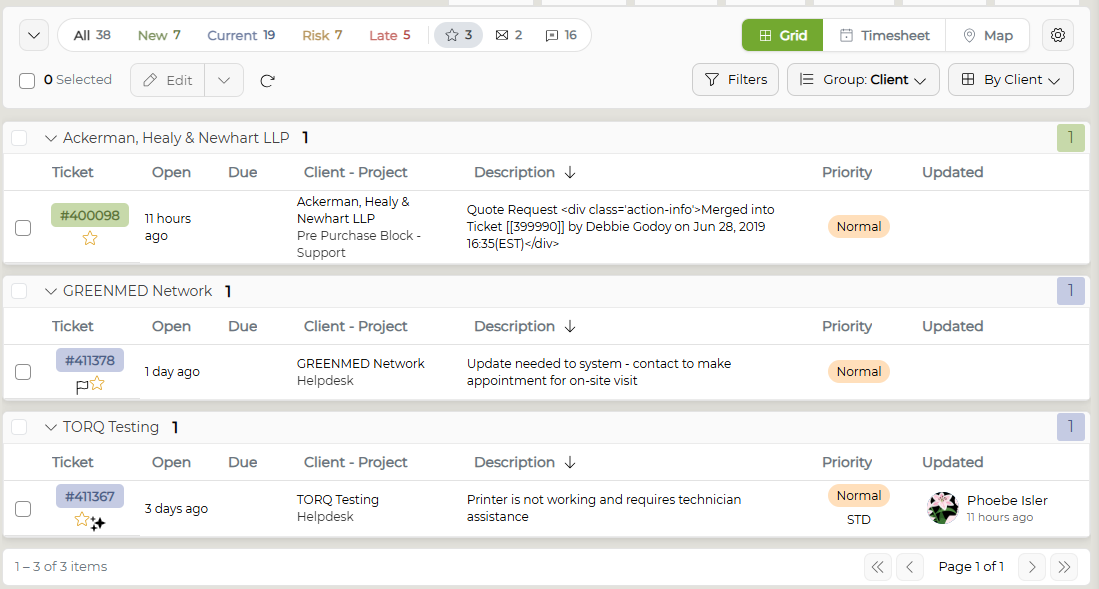
Select the type of ticket you wish to edit by filtering using the ticket status menu at the top of your home page; once filtered, select the tickets you wish to edit.
|
New tickets selected |
|
| Late tickets selected | 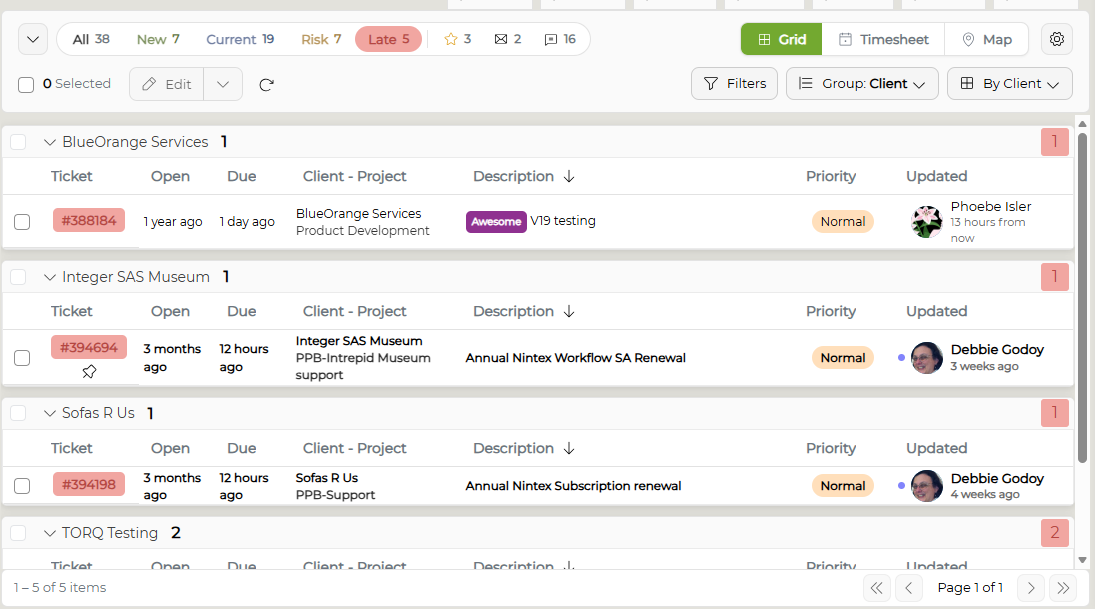 |
|
Starred tickets selected |
|
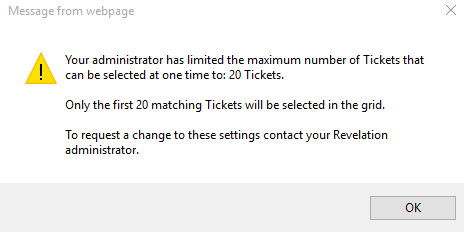
Note: The Administrator may have limited the number of tickets which can be selected at any one time. You will receive a warning message if this has been set and you have selected more tickets than allowed.