
Note: This feature will be visible if activated in the Admin area, and can be set by either Access Level or Team membership.
To Merge tickets using Multi-Edit, select the tickets from your home page by checking them, then click on the edit pencil in the Multi-Edit tool bar at the top of the page. You will see the following:
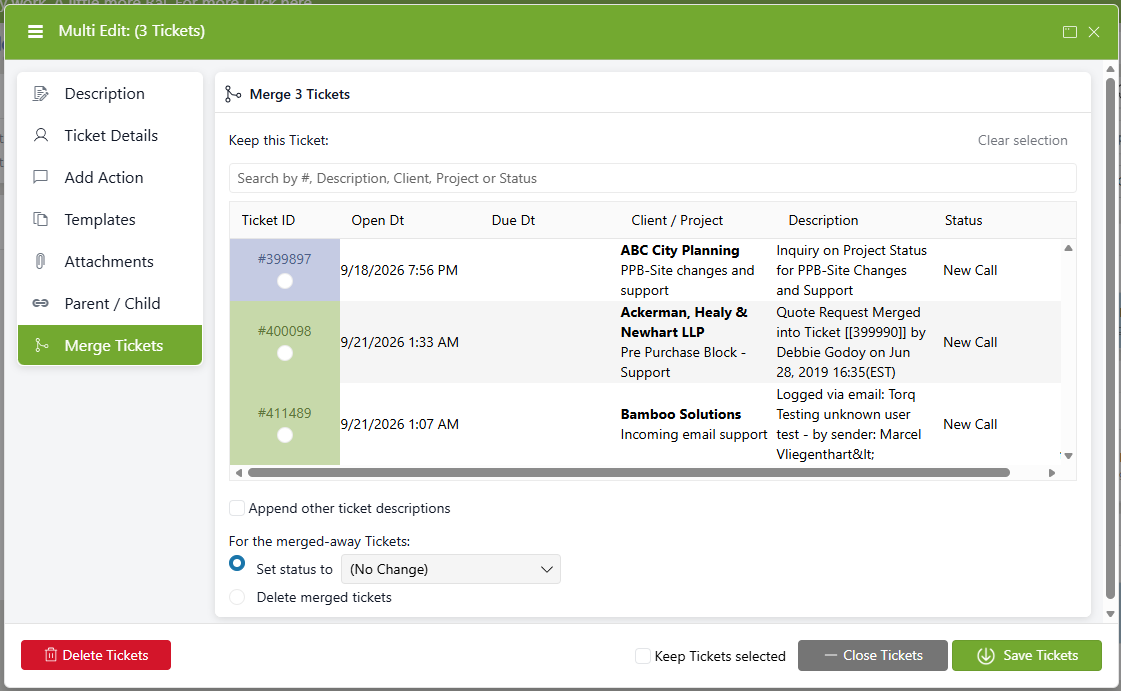
- Select which ticket from your selection will be the main ticket that all other tickets will be merged into.
- If you want to update the ticket descriptions for the tickets being merged in, click the Append other ticket descriptions checkbox.
- Choose what status the merged-away tickets will have from the drop-down menu: Content Moved or (No Change)
- If you want to delete the merged-away tickets once complete, choose Delete merged tickets.
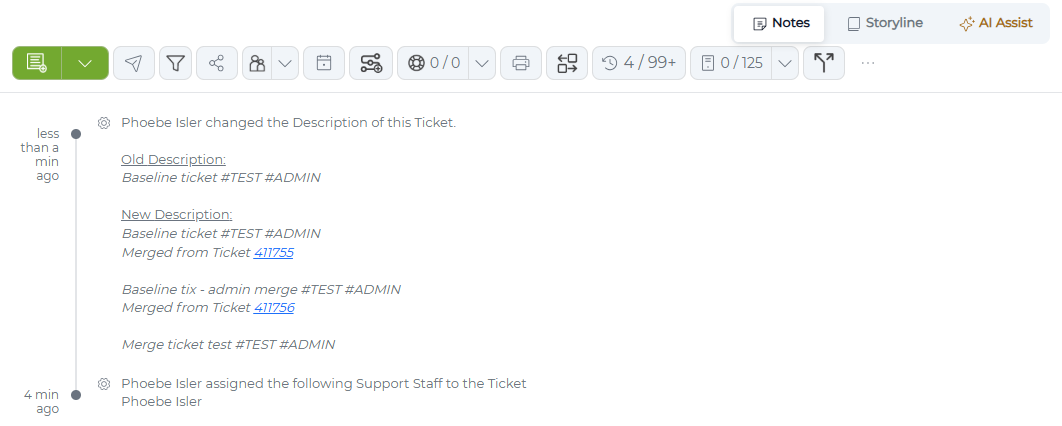
Click Save when you are done, and the tickets will be merged. If you have asked to Display the merged tickets, you will see the following:
You will be able to view the details of actions of the pre-merged tickets, inside the new ticket.
If you've decided to delete the tickets, you will receive the following warning:
