
From within this tab, Admins and Super Admins can manage Client assets or set up categories for the assets.
Manage Client Assets
By selecting a client from the drop down and clicking on Find, you will be redirected to the client's Assets tab in the Client Manager.
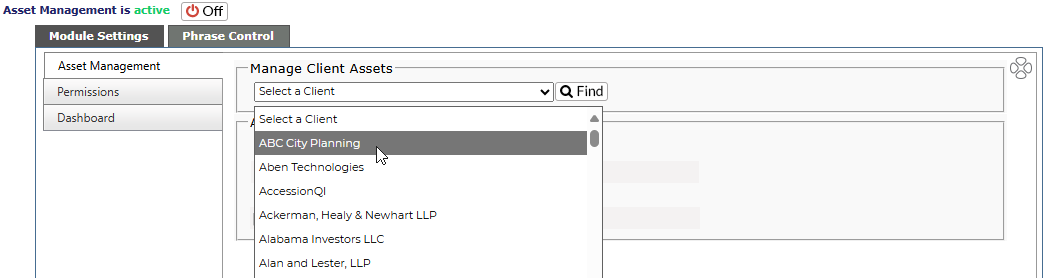
You will then be able to review assets currently within the system for the client and add new ones if needed.

Asset Category Setup
These items allow you to add specific names to the phrases selected earlier, such as specific processors or Operating Systems.
The items which can be set up are:
-
Operating System - Windows 10, Linux, OSX, etc.
-
Processor - Pentium, Xeon, etc.
-
Manufacturer/Model - For the Manufacturer/Model section, submenus are available to add specific models to Manufacturers. When you add assets, this submenu will link to the Manufacturer chosen.
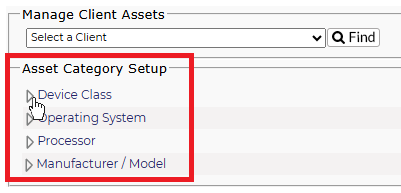
To add Categories:
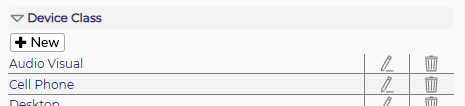
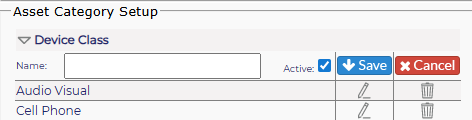
It is the same steps to add either a Device, Operating System or Processor:
-
Open the desired category
-
Click on the Add New button
-
Add the information, hit Save
Manufacturer/Model:
-
Open the Manufacturer category
-
Add Manufacturers with Add New button
-
Hit Save
-
To add models, open the Manufacturer
-
Click on Add New under Model
-
Add the Model(s) required
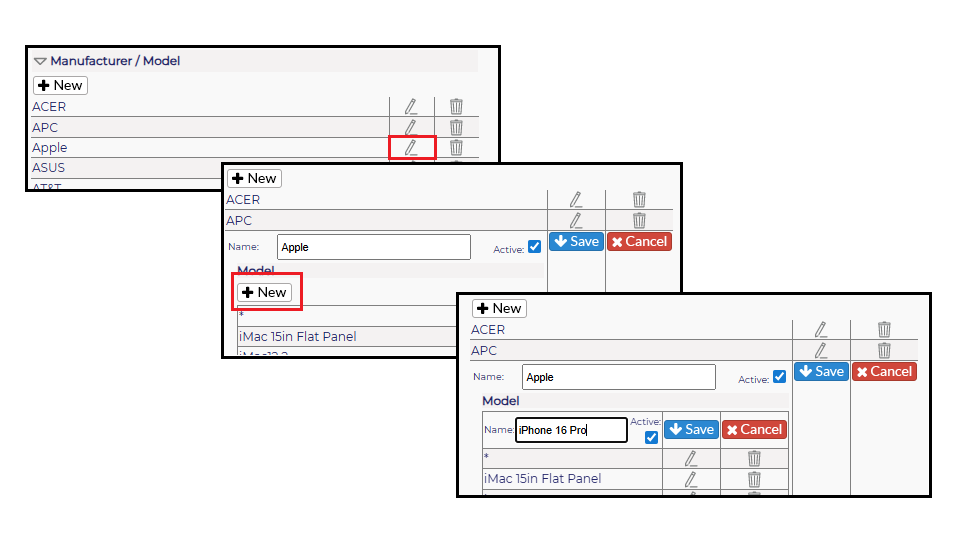
When assets are added or searched, models can be selected only if the manufacturer is selected.
Turn a Category Inactive
Should an item become inactive in your inventory:
- Select the Category
- Find the item within the Category
- Click on the pencil icon
- Uncheck the Active box
- Hit Save
The item will remain in the list, but will move to the bottom, be grayed out and italicized.
To Delete a Category
- Select the Category
- Find the item within the Category
- Click on the trash can icon in line with the item
You will receive the following warning:
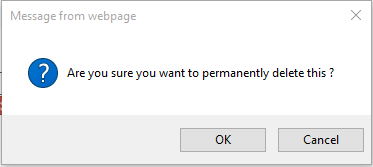
- If you wish to delete the item, click OK. To keep the item, click Cancel.
If the category is currently in use, clicking OK will make it inactive instead.