Chat
The Revelation Microsoft 365 app can assist with any Revelation information you need, all without having to leave your Teams chats.
NOTE: for full chat functionality, Rai must be configured.
Revelation's AI, Rai, is designed to communicate in a natural language style, meaning you can ask it anything and it will answer based on what it finds in your Revelation instance. With Rai enabled, you can do a number of things:
- Log a new ticket
- Add an action note to an existing ticket
- Show a list of your open tickets
- Show late tickets for a specific team/queue/user
- Look up details about a ticket, like:
- Who is assigned to it
- When it was opened
- What its current status is
- How much time has been logged
- What the last action note was
- When it is due
- Answer questions about Revelation from the Help Guide
- Tell you details about a specific client project
NOTE: You can say Cancel or Quit at any time to cancel a request and restart the conversation.
The Revelation Microsoft 365 app provides a pre-built list of prompts for use: select the View prompts link located above the ‘send message’ icon to review the configured options.

To Log a new ticket:
- Type Log a new ticket. The Revelation Microsoft 365 app will prompt you for more information:
- Who is this ticket for?
- What should the status be?
- What project should be used?
- What should the description be?
- Once all the necessary information has been collected, the Revelation Microsoft 365 app will ask you to confirm you want to log the ticket. Once it receives user confirmation, the ticket will be logged in your Revelation instance as normal, and Revelation.


NOTE: Because the app uses natural language processing, you can provide as much detail in your initial new ticket request as you want. Whether you prompt “Log a new ticket” or “Log a ticket for [Employee Name]”, the result will be the same.
To add an action note to a ticket:
- Type Add action note to a ticket. The Revelation Microsoft 365 app will prompt you for more information:
- What ticket number is this for?
- What should the action note say?
- How much time should be logged?
- Once all the necessary information has been collected, the Revelation Microsoft 365 app will ask you to confirm you want to add the action note. Once it receives user confirmation, the note will be logged in the specified ticket as normal.
You can also use non-Revelation chats with your coworkers to create new action notes and log new tickets.
Log a ticket from an existing chat:
Locate the message you want to use to create a ticket. Hover over the message and select the […] icon.

Hover over More actions to expand the options menu. Click Log Revelation helpdesk ticket to open the new ticket window.

The Revelation Microsoft 365 app now has automatic user look-up built into its functionality, so it can assign the appropriate end user to your new ticket based on the chat you’re in – however, the end user can be changed the same way it works when using your Revelation desktop instance.
Select the correct project from the drop-down menu, choose a status for your ticket (if needed), and enter a ticket description in the appropriate field. If you need to make changes to the ticket notes, you can do so in the text box provided.
Once all information looks correct, click Submit to log the ticket. It will now appear in Revelation.
NOTE: Once you click the Log Revelation helpdesk ticket or Add Revelation helpdesk note options from the More actions menu, they will appear in your main […] menu.

Add an action note from an existing chat:
Hover over More actions to expand the options menu. Click Add Revelation helpdesk note to open the new action note window:

Enter the ticket number in the search field. NOTE: If you don’t remember the ticket number you need, you can use the search field to locate it – both text and numerical characters can be used and will populate results based on the data in your Revelation instance.
If needed, make any changes to the message within the action note. Once satisfied, log any billable and/or non-billable time to the applicable fields and click Submit.
Once you submit your action note, it will be logged to the specified ticket and will be logged under your name.
Link Unfurl
For organizations that use a .revelationhelpdesk.com domain, the Revelation Microsoft 365 app has a new feature: Link Unfurling.
When sending a link from Revelation helpdesk via Teams chat, Revelation Microsoft 365 app will “unfurl” it, showing a preview card with information from the ticket being linked.

Your message recipient can click the link to open the ticket or click the Open in Revelation helpdesk button within the ticket card.
NOTE: This feature is not available for Revelation users who do not have a revelationhelpdesk domain.
Ticket Search
The Revelation Microsoft 365 app also allows you to add a ticket to a Teams message.
Click the + icon to open your Apps menu and select Revelation helpdesk.

Enter a ticket number (or, if you don’t remember it, a keyword of the ticket you’re looking for) in the search field. Results will populate below.
| Search by Ticket Number | Search by Keyword |
|---|---|
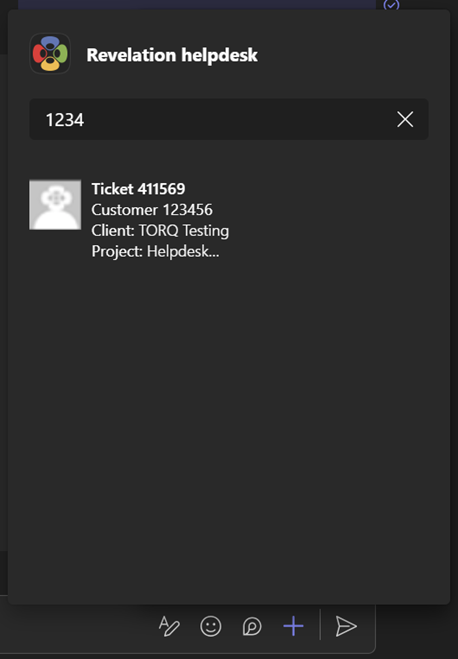 |  |
Project Details
The Revelation Microsoft 365 app can now tell you how much time is associated with a client’s existing project. Be sure to use the exact client name when asking Revelation for client information.

Help Guide Query
The Revelation Microsoft 365 app can also assist with questions about how to use Revelation helpdesk. You can ask about specific functionality—such as how to create a new ticket type or where to upload a logo—and the bot will return relevant information from the Help Guide.

External Users
Much like in the desktop instance, end users will have access to the Revelation M365 app in a limited capacity. However, all external users have limited access to its features.
End users can log tickets for themselves and add action notes without billable or non-billable time. An end user cannot reassign a ticket or review project or ticket time details.