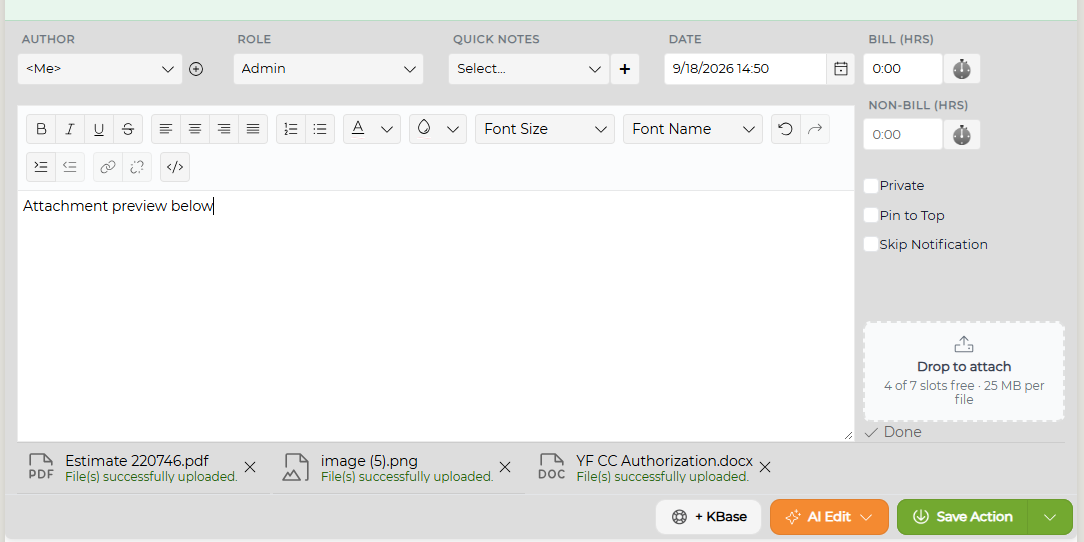
When active in the Admin area, users are able to add attachments to the Add Initial Action area when logging a new ticket.
Add an Attachment to a New Ticket:
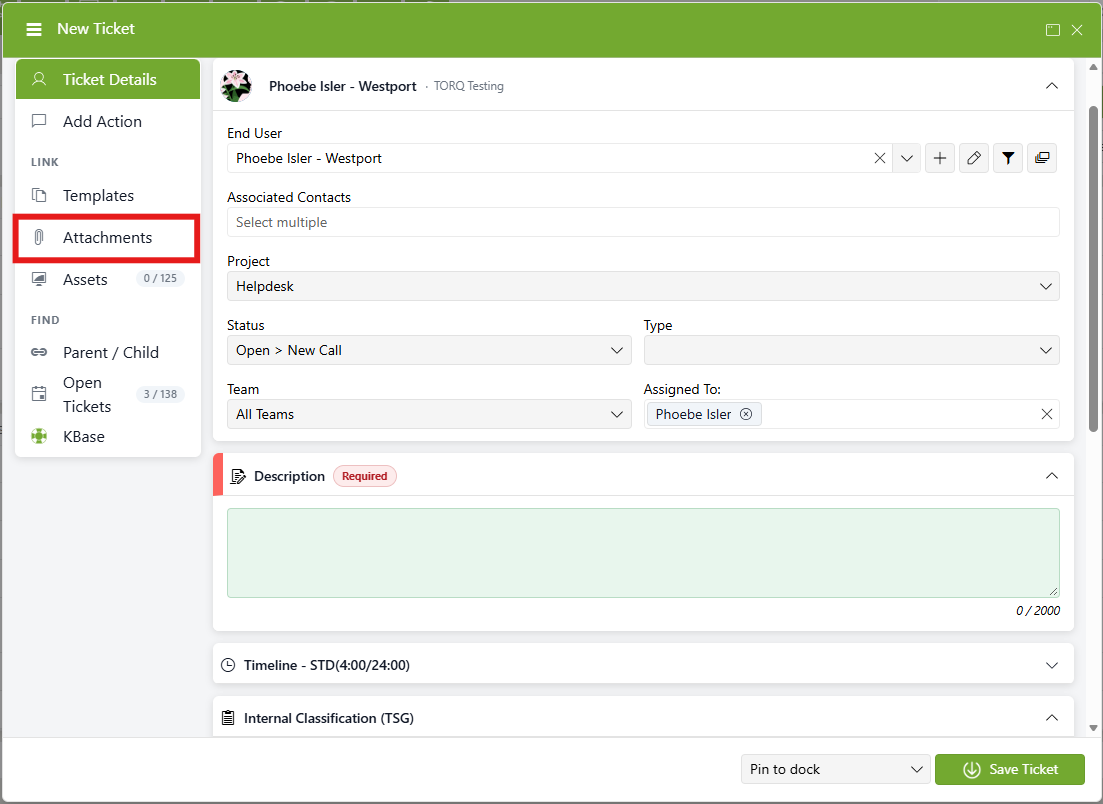
Select the Attachments tab from the lefthand ticket menu. Drag the desired file from your computer into the window to attach it to the specific ticket. You can also click the Drop to attach field to browse for your file.
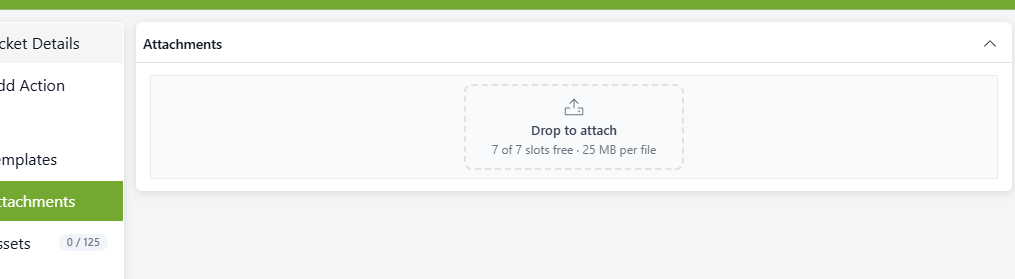
Add as many attachments as required. NOTE: The number, size and type of file may be limited by your Administrator.
Add an Attachment to an Existing Ticket:
Click on the Add Action icon within the ticket toolbar. Drag and drop any attachments in the Drop to attach field, or click the field to browse for your file manually. Add action description as necessary and click Save.
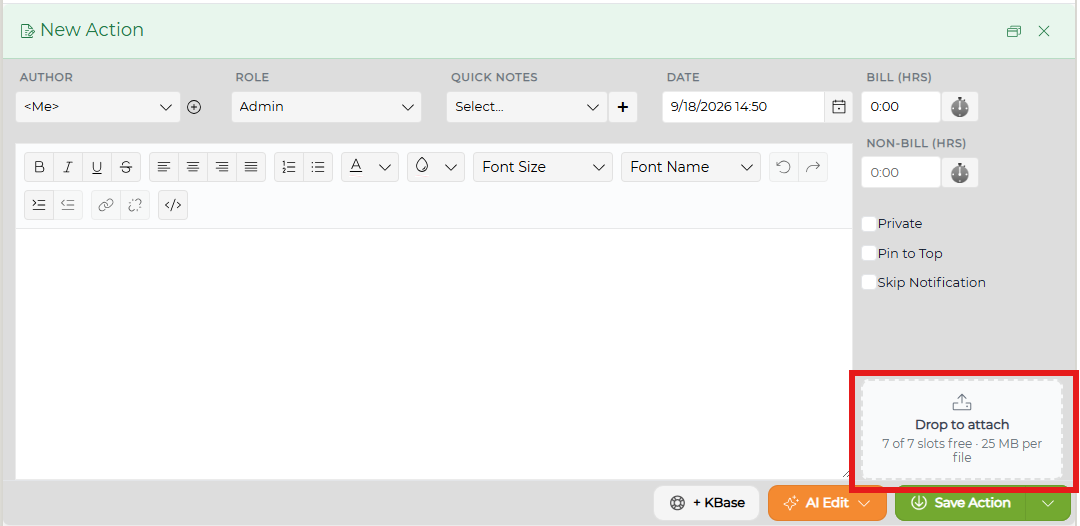
Any attachments uploaded to the ticket will appear beneath the Add Action text field. You can delete an attachment by clicking the X next to each attachment.