
Revelation helpdesk has a Knowledge Base as part of the available System Options. If this option is enabled, users will be able to search through the Knowledge Base (KBase) for articles.
Add a Knowledge Base Article to a New Ticket
If enabled in the Admin area, there will be a KBase tab in the left toolbar of the Log A Ticket window. Enter the ticket description, then click on the KBase tab. Revelation will automatically check for keywords in the description and populate relevant articles in the Knowledge Base system.
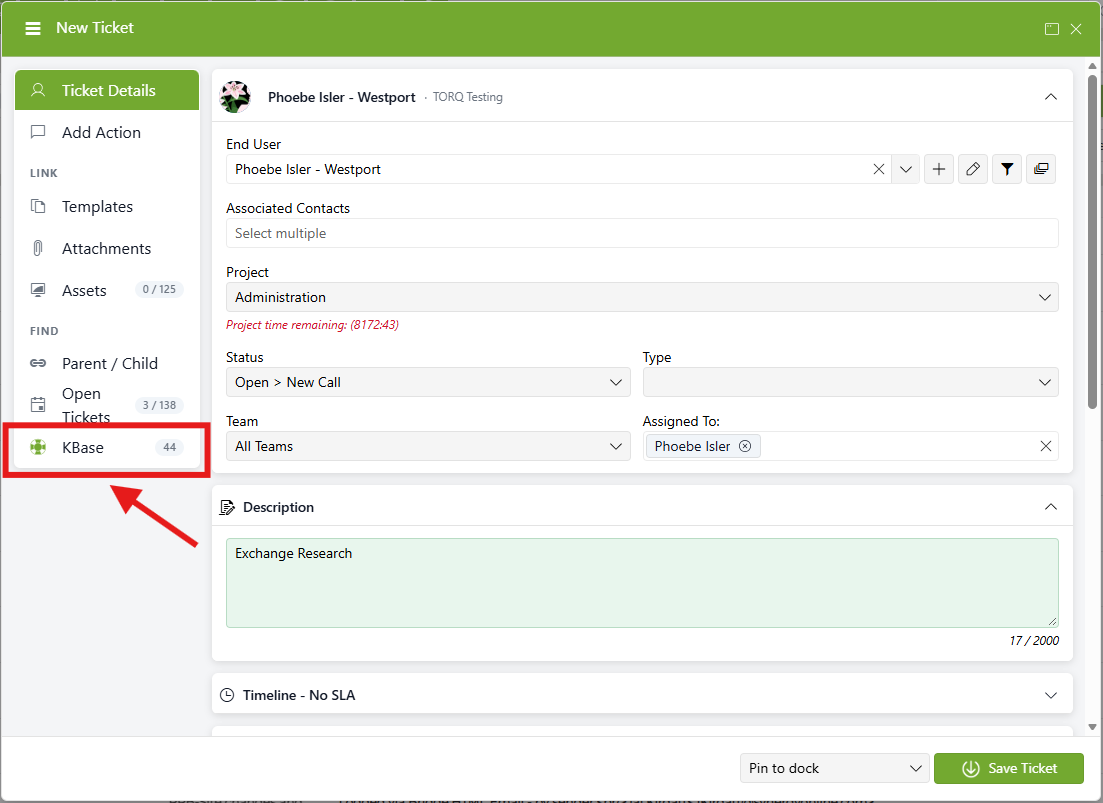
If any articles are listed, you can attach them by clicking on the checkbox next to the appropriate article number.
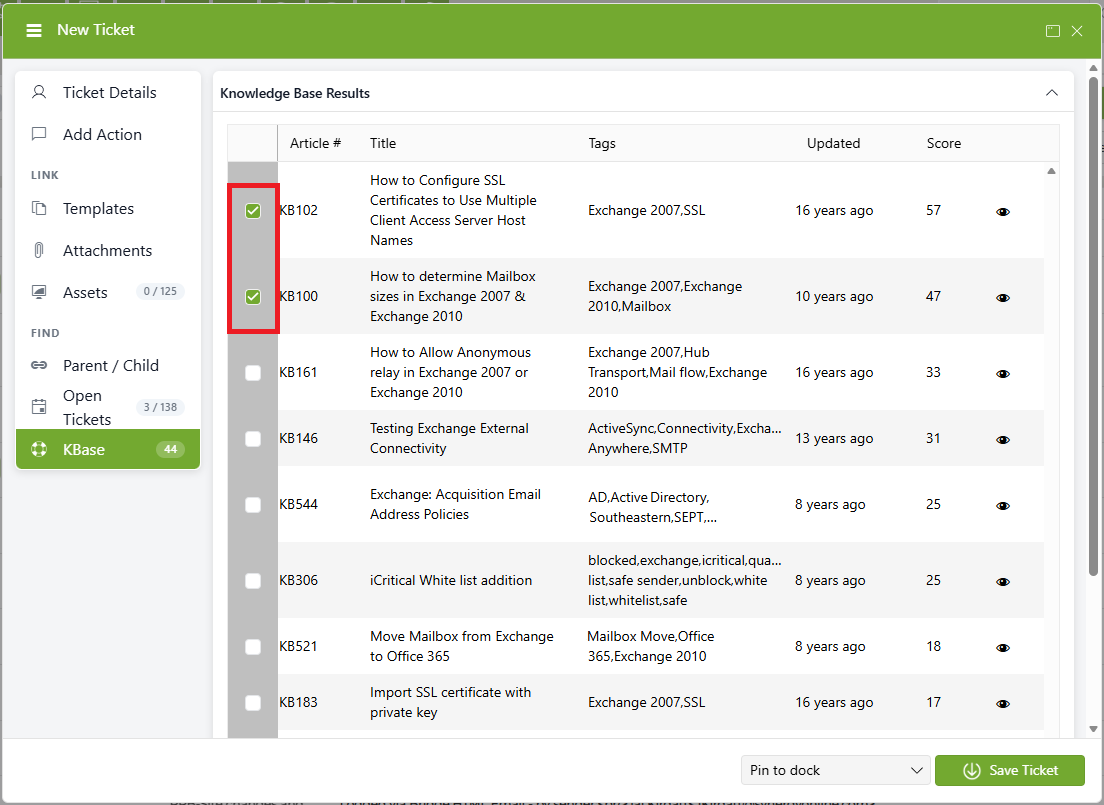
You can also view the KB article by clicking the Eye icon. click on the KB number to bring up the article in a pop-up window.
Once you have selected the KB articles you need, click Save - the KB articles will be listed in your ticket toolbar. You can click the KB icon to view all attached articles.

NOTE: Be sure to have Allow pop-ups from Revelation active in your browser
Add a Knowledge Base Article to an Existing Ticket
In an existing Ticket, users can search the Knowledge Base by clicking the Knowledge Base logo in their main toolbar. Revelation will populate relevant articles based on the Ticket Description.
NOTE: If the Knowledge Base logo doesn't appear in the toolbar, users can reconfigure their toolbar to include the Knowledge Base icon.


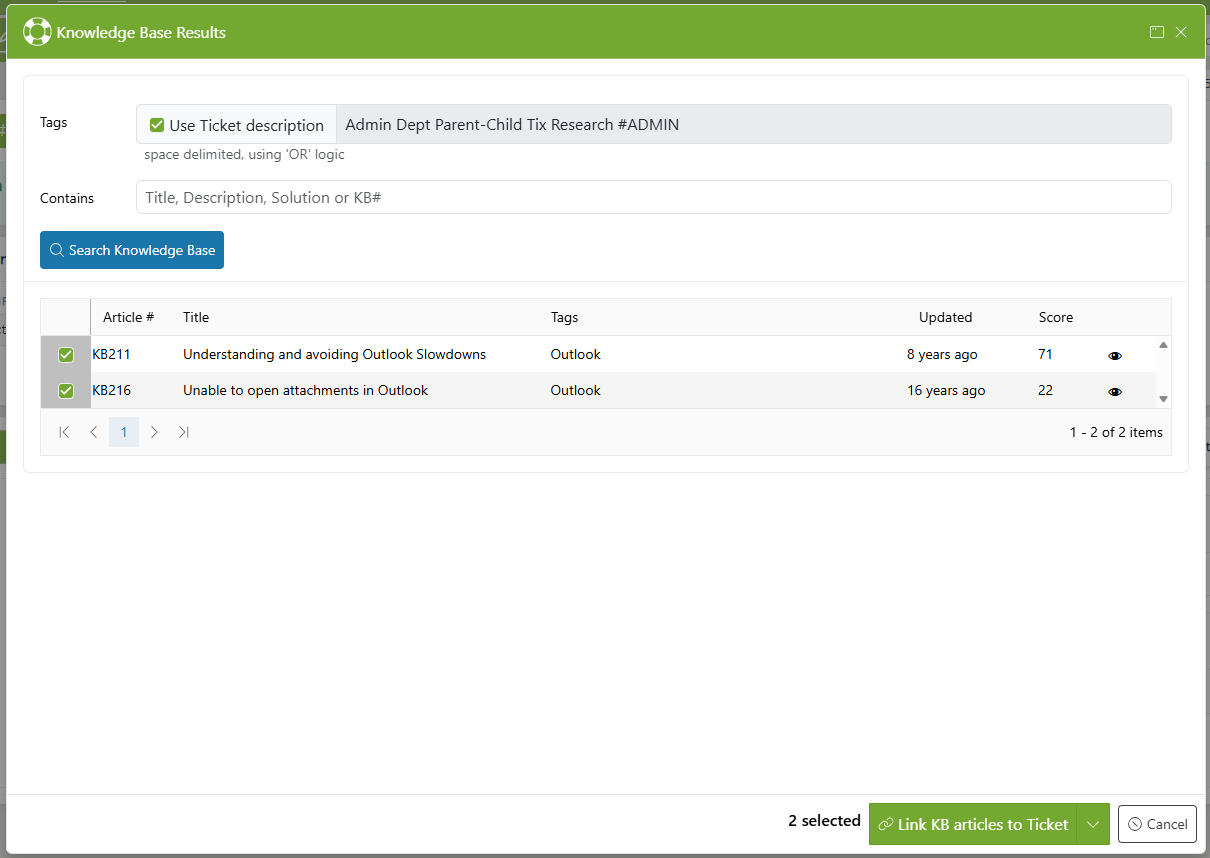
Admin and Manager level users are able to convert the existing Ticket into a Knowledge Base article by clicking the drop-down arrow next to the Knowledge Base icon and selecting Add to Knowledge Base.
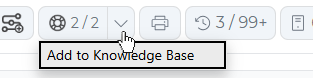
If Knowledge Base is disabled within System Options, the button will not appear. The option to search from within Log A Ticket and in Search will be removed.