
If enabled by the System administrator, the Home Page Filter allows you to search for a term within the columns available on your home page. When enabled, the filter will show in the Summary Bar area at the top of your screen.

When you click on the button, the following field will appear:

You can use the available drop-down options to fine-tune your visible tickets:
- Tags: Filter by any ticket tag that is configured in your system
- Status: Filter by tickets with the selected status options from the drop-down menu. You can select all, select a few, or select one when using the filter feature
- Priority: Filter by ticket priority based on configured SLA priorities in your system
- Hierarchy: Filter by hierarchy status - Parent, Child, or Normal (none)
- Created: Filter by date created. View all, or choose from Today, Yesterday, This Week, Last Week, This Month, Last Month, Last 3 Months, or Older than 3 Months
- Due: Filter by due date. View all, or choose from Today, This Week, Next Week, This Month, Next Month, Next 3 Months, or Later than 3 Months
You can also filter by keywords using the Include/Exclude search field.
To make a customized filter your default view, click the 3-dot icon and select Save as default.

To clear an applied filter, click the Clear Filter button beside the keyword text box.

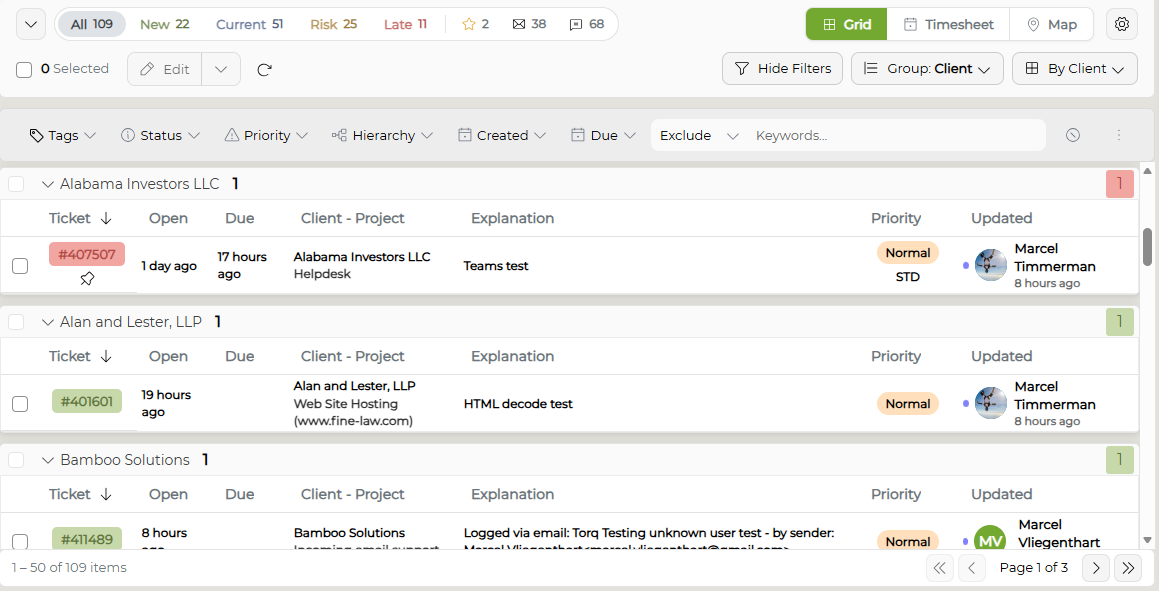
If you've chosen to exclude text, the results will show all the tickets without the term selected. In the example below, tickets with the word 'Test' are removed from the results list:
| Without Filter Applied | With Filter Applied |
 |
|
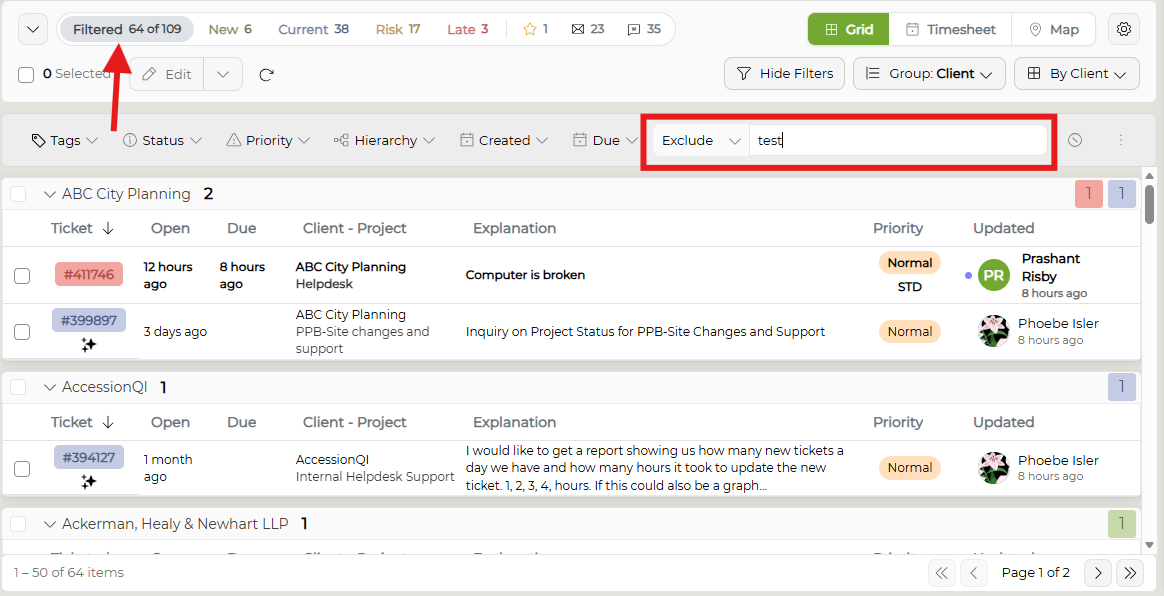
The results will automatically show in the Summary Bar, updating the total number of tickets as well as the additional filter options (Status - New/Current/Risk/Late, Starred, Unread).
If you select a number of tickets to edit, the number will show in the Tickets Selected field.
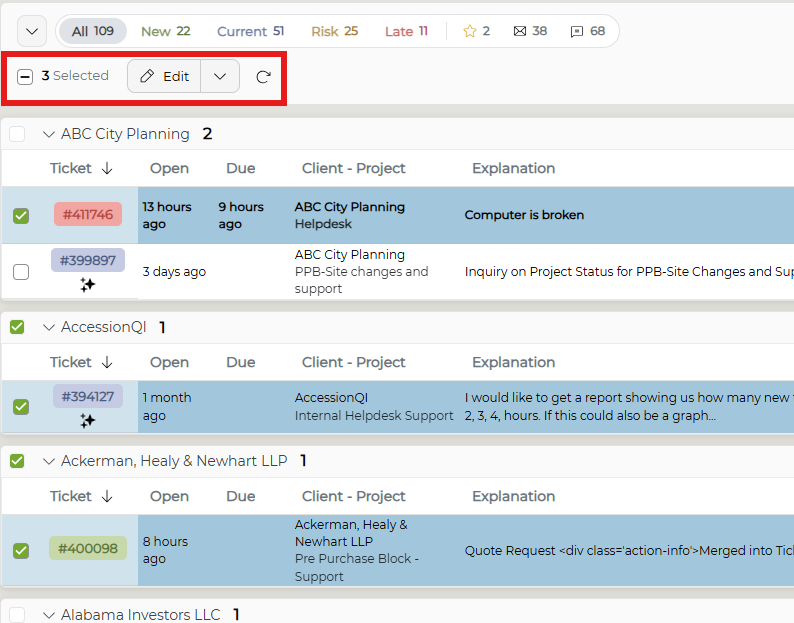
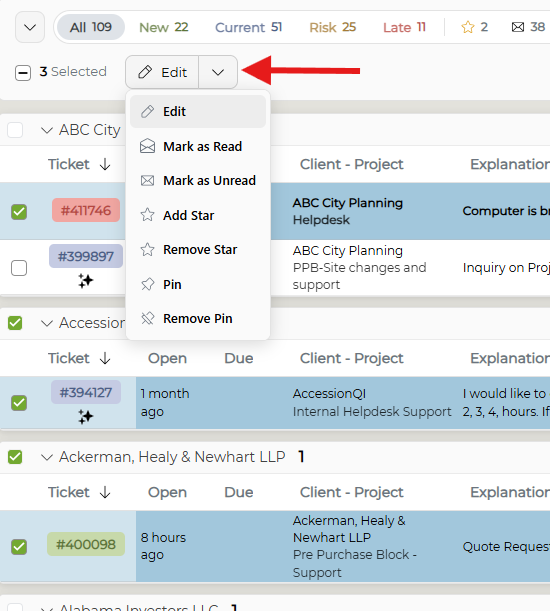
To make changes to multiple selected tickets, click the Edit button or click the down arrow to expand your Multi Edit options.
The Include/Exclude search can be refined by entering multiple terms in the search box. For example, if you type "email problem high" in the Include search, the results will return only those tickets containing ALL three words. In effect, you are doing a search using "email AND problem AND high".