If enabled by the Administrator, all User levels can set Home Page Options, sorting and/or grouping columns on the home page to their liking. If this is disabled, Staff will still be able to see other views, as set up by the Administrator. This is done in the Ticket Settings-Home Page Views area of Revelation's Administration area. Each user can also create custom grid views for their home page.
You will be able to page through them without having to return to the home page using the arrows in the Ticket Number area.
Select an Existing View
-
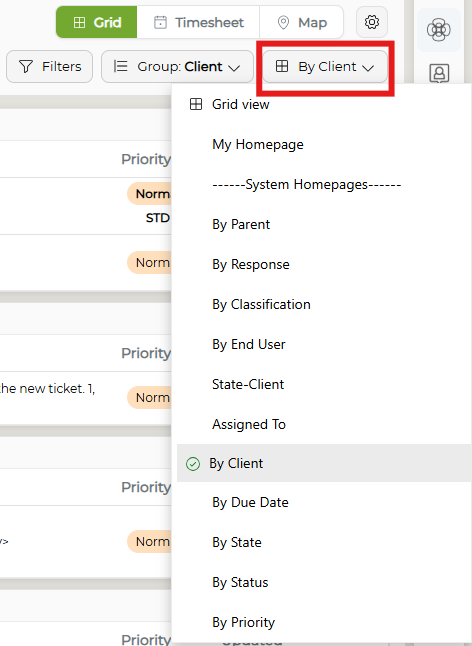
To select an existing view, click on the drop-down button beneath the Homepage settings gear. This will give you the full list of preconfigured System Homepages, as well as any custom views you have created.
-
Select one of the views, and the screen will automatically refresh with the selected view.
NOTE: If you leave the home page or log out of Revelation, the home page view will remain in the last-used view when you return.
Groupings
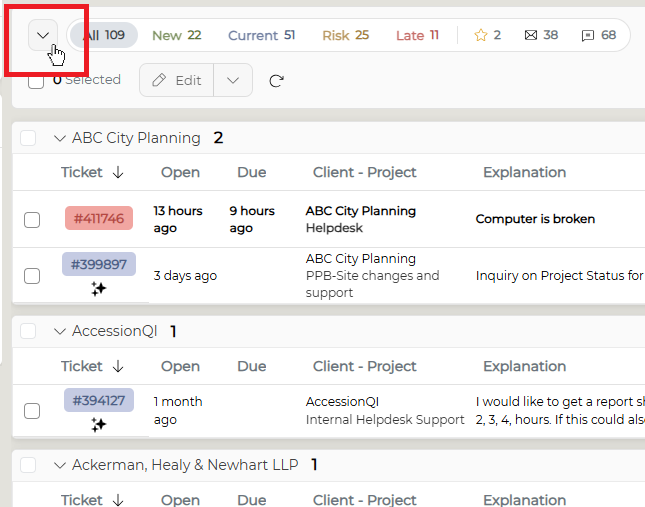
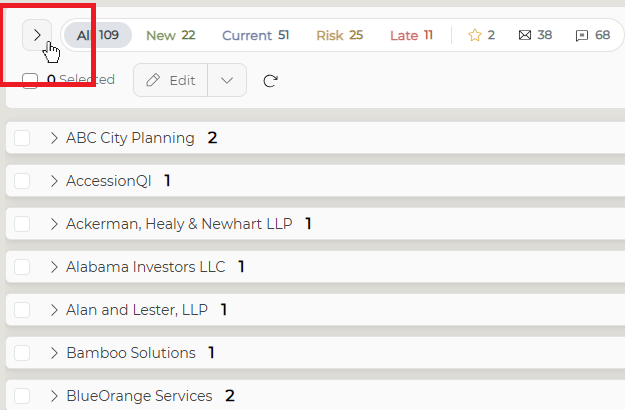
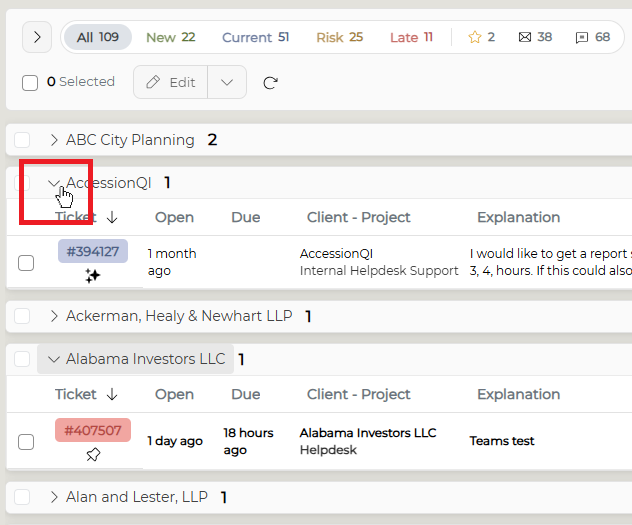
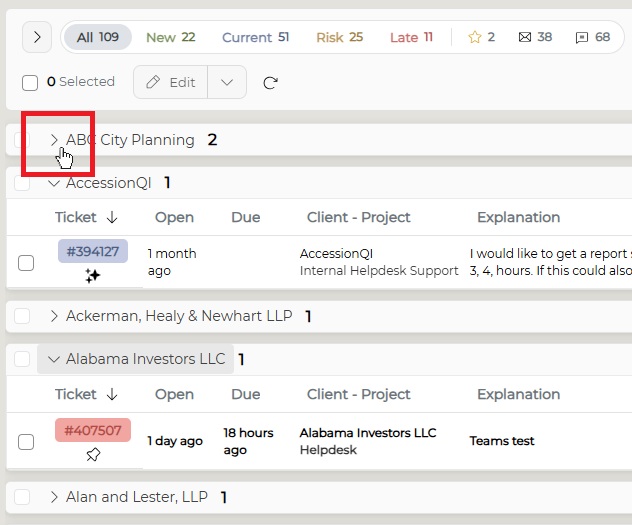
Once you select a home page view, if there are groupings, you will be able to collapse or expand groups and subgroups using the arrows by the group headers. If you use the arrow by the column headers, you will expand/collapse your entire ticket home page.
|
Collapse all |
|
|
Expand all |
|
|
Collapse group |
|
|
Expand group |
|
Paging
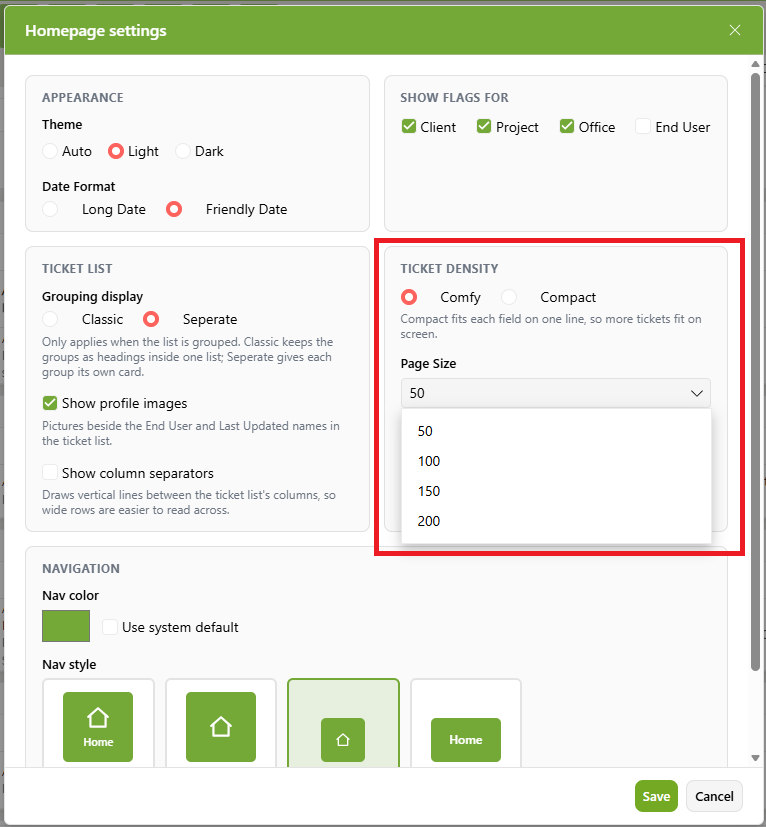
Paging controls are available in the Homepage settings window and allows users to select a view of between 50 to 200 tickets per page.
The controls at the bottom of the page will allow you to page through by clicking on the page number or using the forward/back arrows. The double arrows will take you to the first or last page of your tickets.