
When doing a single option search from Quick Search, you have the ability to edit the Search View results. If a search result is editable, you will see an Edit View button in the upper right of the search results. You will also see the name of the search in the top banner of the search.

To change your view: click on the Edit button, and you'll see the following:

From within the edit screen, you can change the order of the columns, change the column headers, add or delete columns, change the width of the columns and group the columns.
- Save - Save the search after you have made your changes.
- Cancel - Cancel the changes you've made.
- View - View the search based on the updates made.
- Restore - Restore the search back to the default System View.
Edit Search Results
Once you select the Edit button, you can change the columns, etc. as follows:
Add/Remove Columns
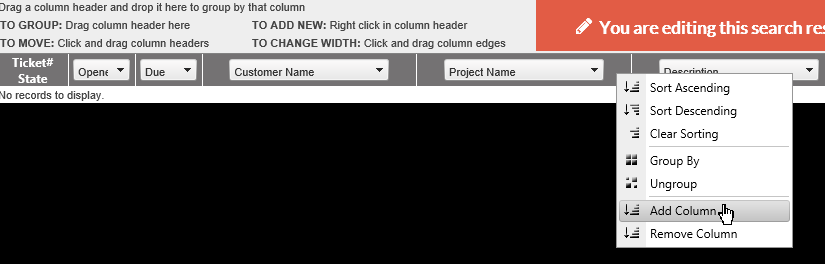
Right click on any of the columns to get a drop down to Add or Remove a column from the Search.
Change Column Type
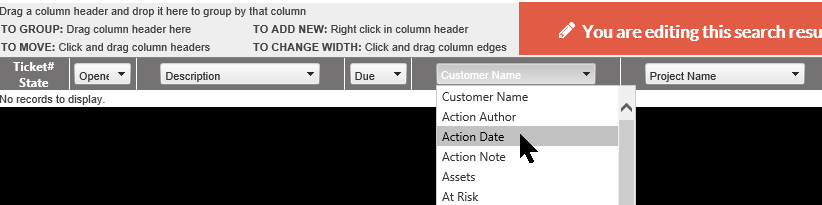
Click on the down arrow for any column to see the options for the column. Select the appropriate item to change the data shown by the column.
Change Column Size
Click on the white line between the columns to get the arrow to resize the column.

Rearrange Columns
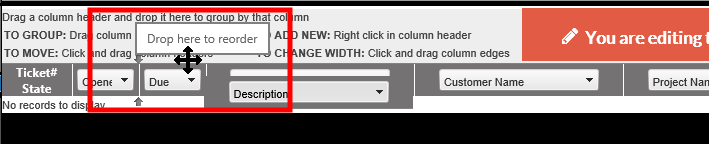
Hover over the column until you see the double arrow, the drag the column header the new location. The system will show arrows at the top and bottom of the area to show where the column will be moved.
To Group items |
|
|
Select the Column to group by |
|
|
Hover over the column until you see the double arrow Drag column header to Dialogue box at top of grid
|
|
|
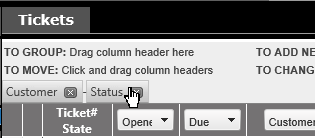
You will then see a Grouped By header and, if multiple columns have been added, it will be a string showing the order for the grouping. |
|
|
|
To delete a grouping, click on the X |

-
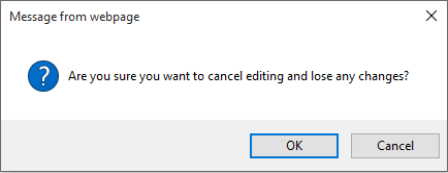
If you don't want to save the new view, click on the Cancel button by the View Name. You will receive a warning about cancelling the editing. Click OK to cancel the changes, or Cancel to continue editing.
.
Arrange column order
Column order can be rearranged by dragging each item to the location you would like to have it on your search results. As you move each item, you will see blue arrows at the top and bottom of the area, showing where the header is being moved.

Save Search
If you want to retain the settings, click on Save. You'll be asked to provide a name for your Saved Search. If you want to share with another staff member, you can @tag them and they will receive notice of the new search.
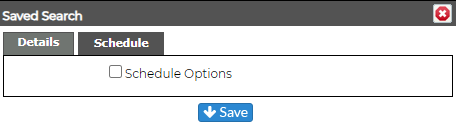
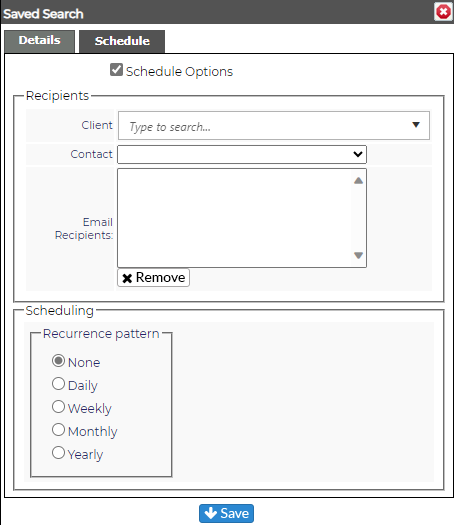
You can set a schedule for the search to run by checking the Schedule Options box.
If you are an Admin, you can also save the search as a new System Search by checking the System Search box.
NOTE: Editing a Search View here will not result in the System Search View being changed. This is only for the User Level. For information on changing the default System Search View, click here.