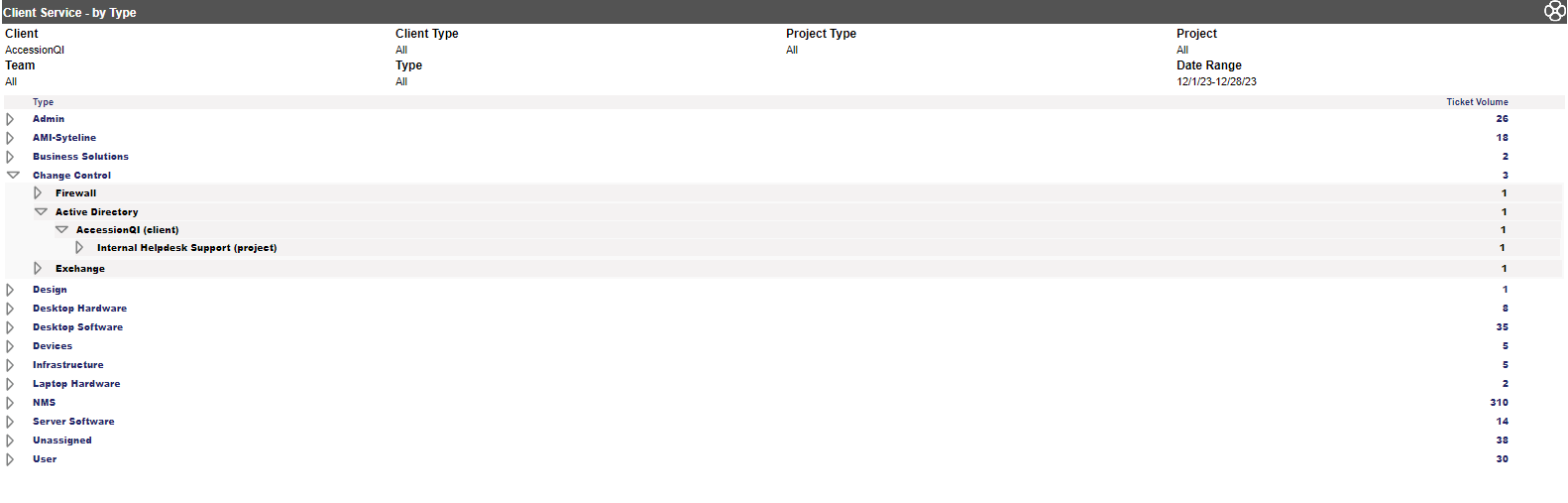
This client services report displays by type. If you leave the client and location pull down set at the default and hit the Display button, all client/location information will be shown. If a client has multiple projects, each project is shown, along with its associated location. By clicking on the arrow, you expand the item showing what types of tickets have been logged during the specified time period (Hardware, software, user, admin, etc.). These ticket types are set when the ticket is logged. Going even further into the expansion, you can see the user ticket sub types.
The options for this report are as follows:
Report Type: Time or Volume default is set in Report Views, but either can be selected.
Client Type: Select specific type or leave at default
Client: Multiple clients can be selected by clicking on the arrow. Click on each client you want to see while holding the Ctrl key. If you want to see all the clients, leave the pull down box blank.
Location:The location for the client. If there are multiple locations, leaving at the default will show all locations.
Cost Center: Select from the drop down or leave at the default for all.
Team: Select from the drop down or leave at the default for all.
Ticket Type: Select from the drop down or leave at the default for all.
Ticket SubType: Select from the drop down or leave at the default for all.
Predefined Dates: The options are Today, This Week, Last Week, This Month (default) and Last Month.
Start Date/End Date: As with the other reports, you can specify a date range outside the predefined dates or select the specific date range with the calendar pull downs.
Once your report displays, depending on your report criteria specified, the columns in this report will be displayed as the following:
Client/Project/Location: A sub heading under each client for each project along with the ticket type.
Non Bill/Bill: The amount of time non-billed/billed to that client/location for the specified time frame.
Total: The total non-bill/bill time for each client/location for the specified time frame.
These descriptions are based on having the Time option set. If Volume is selected, one column with Ticket Volume totals will appear.
By clicking on the arrow, you will expand the Type and will be able to drill down to the ticket information.