
NOTE: Only Admin or Super Admin level users are authorized to build reports in Report Builder.
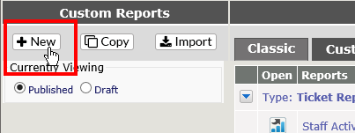
To build a new report, click on Build new report at the top of the list of reports in Report Builder.
This brings you to the Report Details page where you give the report a title and a description.
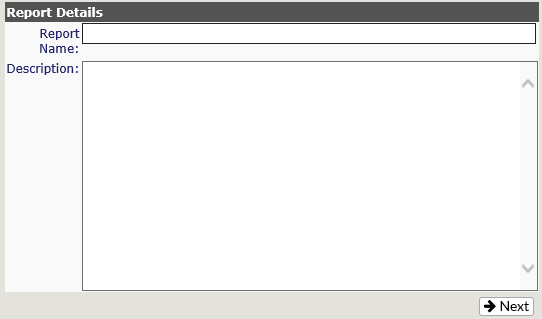
Click on Next
NOTE: Report Names can be phrased to match any changes you may make in Phrase Control. If, when the Report Name is created, the syntax <phrase>TicketPhrase</phrase> is used, where TicketPhrase is the original phrase from the Phrase Control list. If at any time you change the Host Phrase to something else, the title in Report Builder will match your change.
This brings you to the list of Report types available. By clicking on the Report type, you get the first level of options available based on the categories available. These are:
|
Ticket |
Project |
User |
Asset* |
Customer Feedback* |
|
Action Ticket Client SLA Project Type Ticket Status |
Action Ticket Project Client SLA Type Ticket Status |
User Client |
Asset Ticket Client SLA Type Ticket Status |
Customer Feedback Ticket Client SLA Project Type Ticket Status |
|
* These categories will not be visible if Asset Management or Customer Feedback modules are not enabled. |
||||
Each category has its own set of fields available. These are based on your Revelation setup. .
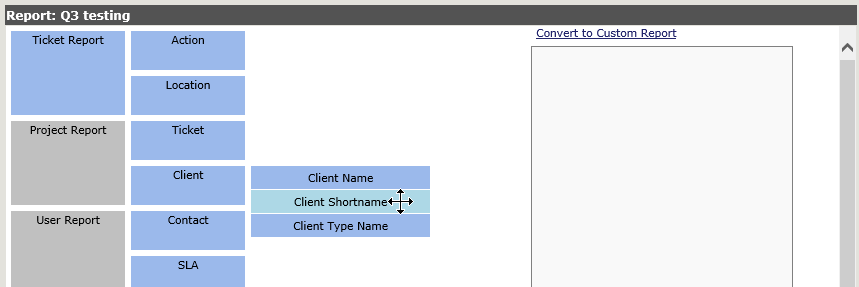
To create the report, select the field and drag it to the report field box.
-
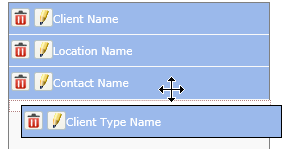
To move a field within the report, put your mouse over the filed until you get the double arrow and drag it to the appropriate location in the listing.
-
To remove a field from the reporting column, click the red garbage can icon.