
AI Suggest
With AI Suggest, your support agents no longer need to decipher vague, unrelated ticket descriptions from your end users – Rai can do that for you.
Whether your help desk received a ticket that just says HELP in the description, or your end user has misidentified the issue, Rai can be your second set of eyes to maximize ticketing efficiency by generating a clearer, more accurate ticket description for use.

Learn more using the links below:
- Where is AI Suggest?
- What AI Suggest Can Do
- What AI Suggest Can’t Do
- Best Practices for Using AI Suggest
- Your Data, Your Control
- Sample Outputs – What to Expect from AI Suggest
Where is AI Suggest?
In every ticket description bar, Revelation’s AI logo  will appear on the righthand side, beneath the pinned and starred options. This is the AI Suggest button.
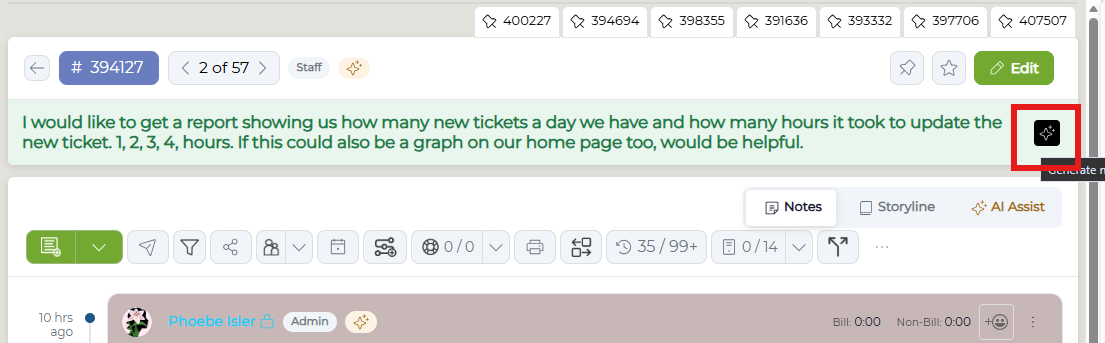
NOTE: For tickets that have an original description that is less than 70% accurate, AI Suggest automatically provides a suggested description for use.
For details on how Rai developed the description, click the  button for a breakdown.
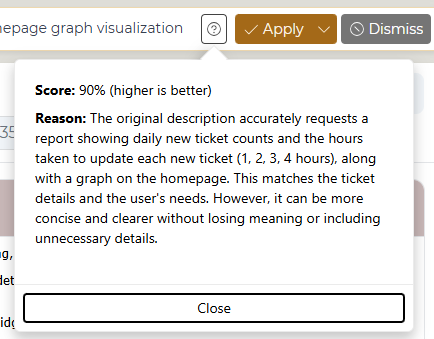
The Score field is Rai’s accuracy rating of the original ticket description. The Reason field is Rai’s explanation of how the suggested ticket description was determined.
If your ticket description is 70% accurate or higher, Rai will not automatically generate a replacement. However, users can still request an AI-generated description manually.
Click the AI Suggest button to prompt Rai.

Rai will generate a suggested description in a yellow bar above the original ticket description. If you’re satisfied with the suggestion, click Apply. If you need to make edits, select the drop-down arrow and click Edit and Apply to make any necessary changes.
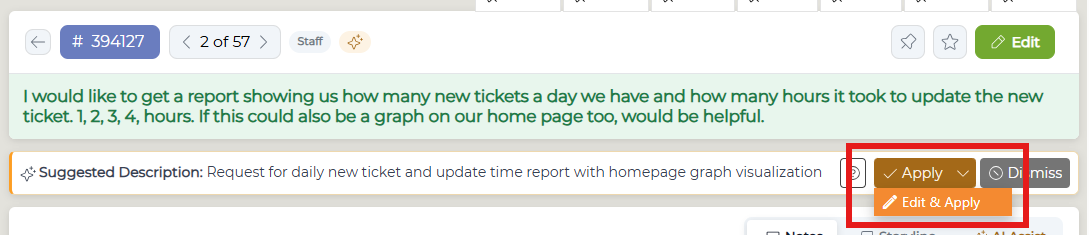
Once complete, a system action note will be logged noting the change in ticket description as usual, just with an added AI logo that denotes Rai usage.
NOTE: AI Suggest can be used at any time throughout the life of the ticket. If additional action notes are added and the ticket description needs to be changed, users can prompt Rai to regenerate the description as many times as necessary to retain accuracy.
For Admins
Not interested in keeping AI Suggest in auto-suggest mode? Revelation Admins can toggle that on and off as needed. Navigate to the Revelation AI section of the Admin Panel and uncheck the Auto suggest box.
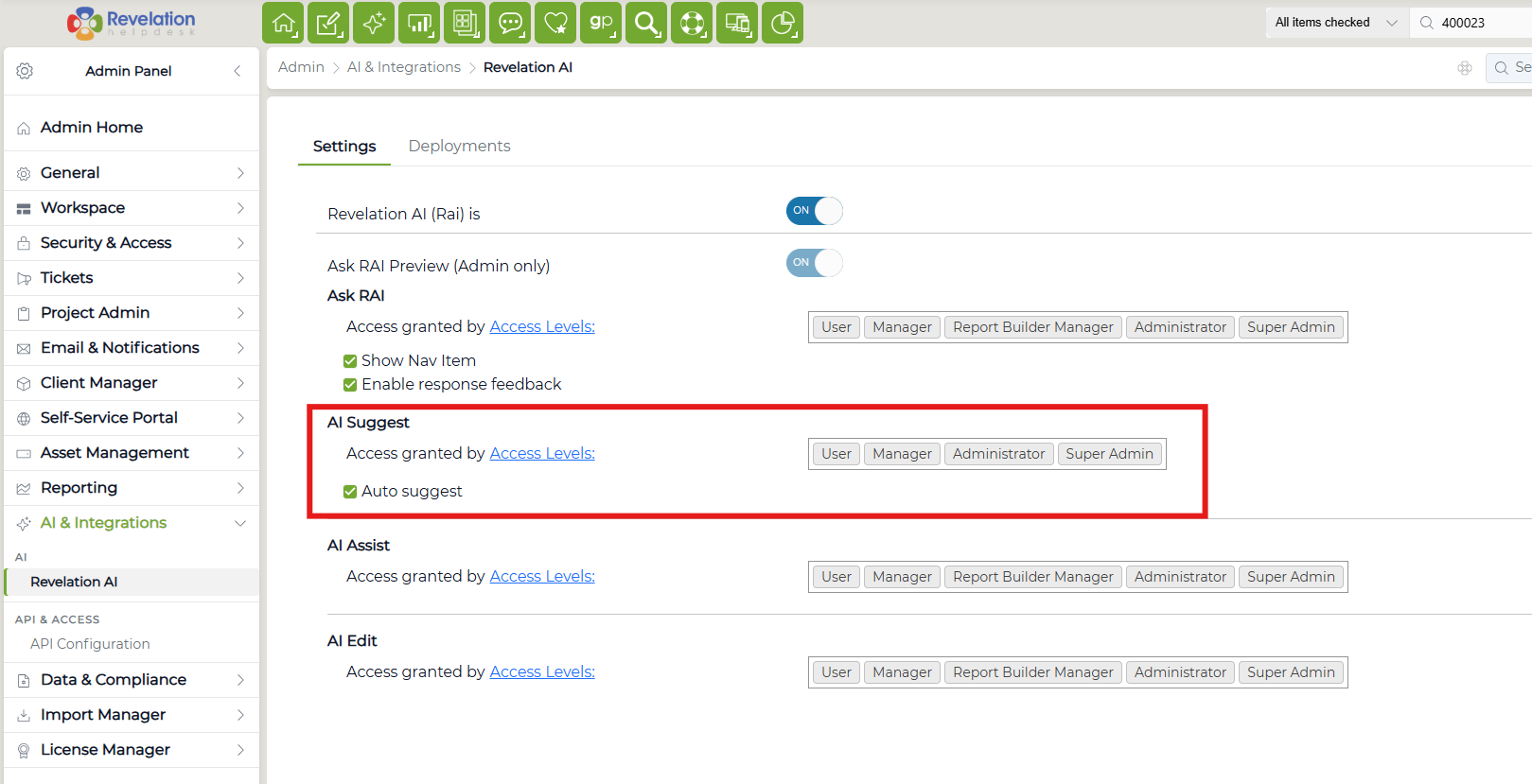
Once unchecked, users will have to manually generate the AI Suggest description by clicking the AI button in the description box.
What AI Suggest Can Do
AI Suggest is a small but mighty tool – it allows users with the right permissions to easily reidentify and relabel ticket descriptions based on the contents of the ticket with just the click of a button.
You and your agents can keep tickets up-to-date as action notes are added, ensuring efficient and accurate helpdesk work without the added stress of trying to come up with the right summary.
What AI Suggest Can’t Do
While AI Suggest is automatically enabled for all customers using Revelation AI, Rai will not make changes to a ticket unprompted. While suggestions will populate for description updates, users must click Apply for any changes to be made.
AI Suggest was specifically designed to work on ticket descriptions – for any action note adjustments, use AI Assist instead.
Best Practices for Using AI Suggest
Ensure access is given only to employees who need it. Like all Revelation AI features, Administrators have control over what user types have access to AI Suggest. Make sure AI Suggest is configured to align with your organization’s existing AI policies.
Don’t use AI Suggest for templated tickets. While AI Suggest is helpful in maintaining consistent and clear descriptions, agents should make sure that any templated tickets with a required description format do not have AI Suggest applied.
Monitor your AI token usage. Large systems with many users and many tickets can generate a large volume of OpenAI traffic when auto-suggest is toggled on, which may be costly.
Your Data, Your Control
At Yellowfish Software, we take customer data security and privacy seriously. That’s why Rai — and all future AI features — run on your own Azure AI instance, fully contained within your Microsoft 365 tenant. Your ticket data, as it relates to AI queries, never leaves your secure Microsoft 365 environment. All AI processing happens inside your own Azure AI tenant, inheriting your existing compliance, governance, and security policies.
While we have options for integrating with other AI large language models (LLMs) in our product roadmap, as of Fall 2025, Azure AI is the sole option. This ensures that every customer benefits from consistent, Microsoft-aligned security and governance from day one.
Sample Outputs – What to Expect from AI Suggest
Example 1
Description Before: "I would like to get a report showing us how many new tickets a day we have and how many hours it took to update the new ticket. 1, 2, 3, 4, hours. If this could also be a graph on our home page too, would be helpful."
Description After: "Request for daily new ticket count and update time report with homepage graph"
Example 2
Description Before: "LEN187"
Description After: "LEN187 Computer Crashes and Blue Screen Automatic Repair Error; Replacement Ordered"