
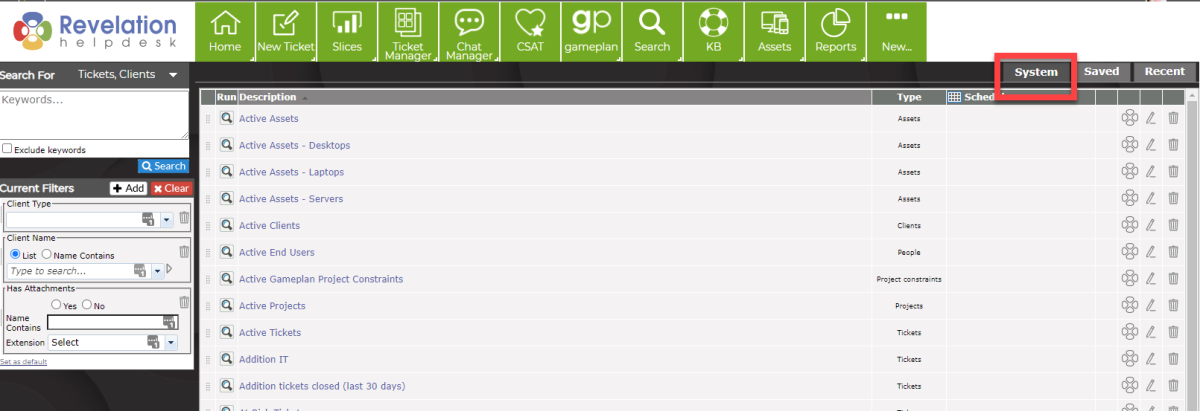
Revelation comes with some pre-built system searches. These are:
- Active Tickets
- At Risk Tickets
- Late Tickets
- Tickets open for 10+ days
- Tickets Closed This Week
- Reopened Tickets
- Active Projects
- Active Assets
- Active Clients
- Active Locations
- Active Users
- Tickets with No actions
You can use these pre-built searches as is, edit them to add/delete filters from the search, or use them to create a new search with your particular filters.
Create a System Search
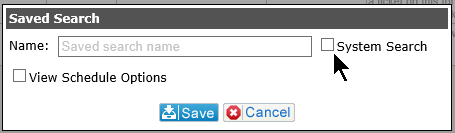
Once you've run a search, you will see a Save button under the Current Filters. When you click on this, you will be asked to provide a name for your search. There will also be a check box for System Search. If you check this box, the search will be added to the System Search list.
Edit a System Search
To edit a System Search: Run the search and then make the changes to the filters on the left side of the screen. Save the new search either with the same name or with an updated name, making sure the System Search check box is ticked.
Delete a System Search
To delete a System Search, click on the red trash can to the right of the search name. You will get a pop up asking if you are sure you want to delete the Saved Search. Click on OK to delete, or Cancel to keep the search
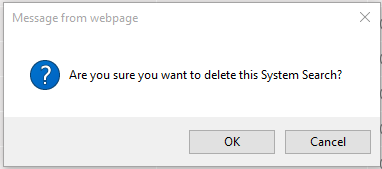
NOTE: If you delete a System Search, it cannot be reinstalled. However, it can be recreated.